

Concepts and terminology
Now that you are in Home Assistant, let’s look at the most important concepts. Home Assistant is built around a small set of building blocks: integrations, devices, entities, areas, and automations. Once you understand how they fit together, the rest of the platform falls into place.
Integrations
Integrations are pieces of software that allow Home Assistant to connect to other software and platforms. For example, a product by Philips called Hue would use the Philips Hue integrationIntegrations connect and integrate Home Assistant with your devices, services, and more. [Learn more] and allow Home Assistant to talk to the hardware controller Hue Bridge. Any Home Assistant compatible devicesA device is a model representing a physical or logical unit that contains entities. connected to the Hue Bridge would appear in Home Assistant as devices.

Some integration cards show an icon:
- The globe icon
 indicates that this integration requires the internet.
 - The file icon
 indicates that this integration was not set up via the UI. You have either set it up in your
 configuration.yamlThe configuration.yaml file is the main configuration file for Home Assistant. It lists the integrations to be loaded and their specific configurations. In some cases, the configuration needs to be edited manually directly in the configuration.yaml file. Most integrations can be configured in the UI. [Learn more] file, or it is a dependency set up by another integration. If you want to configure it, you will need to do so in yourconfiguration.yamlThe configuration.yaml file is the main configuration file for Home Assistant. It lists the integrations to be loaded and their specific configurations. In some cases, the configuration needs to be edited manually directly in the configuration.yaml file. Most integrations can be configured in the UI. [Learn more] file. - The custom icon
 indicates that this is not an official Home Assistant integration but that it was custom made. It could be imported from another source, for example downloaded from HACS.
For a full list of compatible integrationsIntegrations connect and integrate Home Assistant with your devices, services, and more. [Learn more], refer to the integrations documentation.
Once an integrationIntegrations connect and integrate Home Assistant with your devices, services, and more. [Learn more] has been added, the hardware and/or data are represented in Home Assistant as devices and entities.
Devices
Devices are a logical grouping for one or more entitiesAn entity represents a sensor, actor, or function in Home Assistant. Entities are used to monitor physical properties or to control other entities. An entity is usually part of a device or a service. [Learn more]. A deviceA device is a model representing a physical or logical unit that contains entities. may represent a physical deviceA device is a model representing a physical or logical unit that contains entities., which can have one or more sensors. The sensors appear as entities associated with the deviceA device is a model representing a physical or logical unit that contains entities.. For example, a motion sensor is represented as a deviceA device is a model representing a physical or logical unit that contains entities.. It may provide motion detection, temperature, and light levels as entitiesAn entity represents a sensor, actor, or function in Home Assistant. Entities are used to monitor physical properties or to control other entities. An entity is usually part of a device or a service. [Learn more]. Entities have states such as detected when motion is detected and clear when there is no motion.
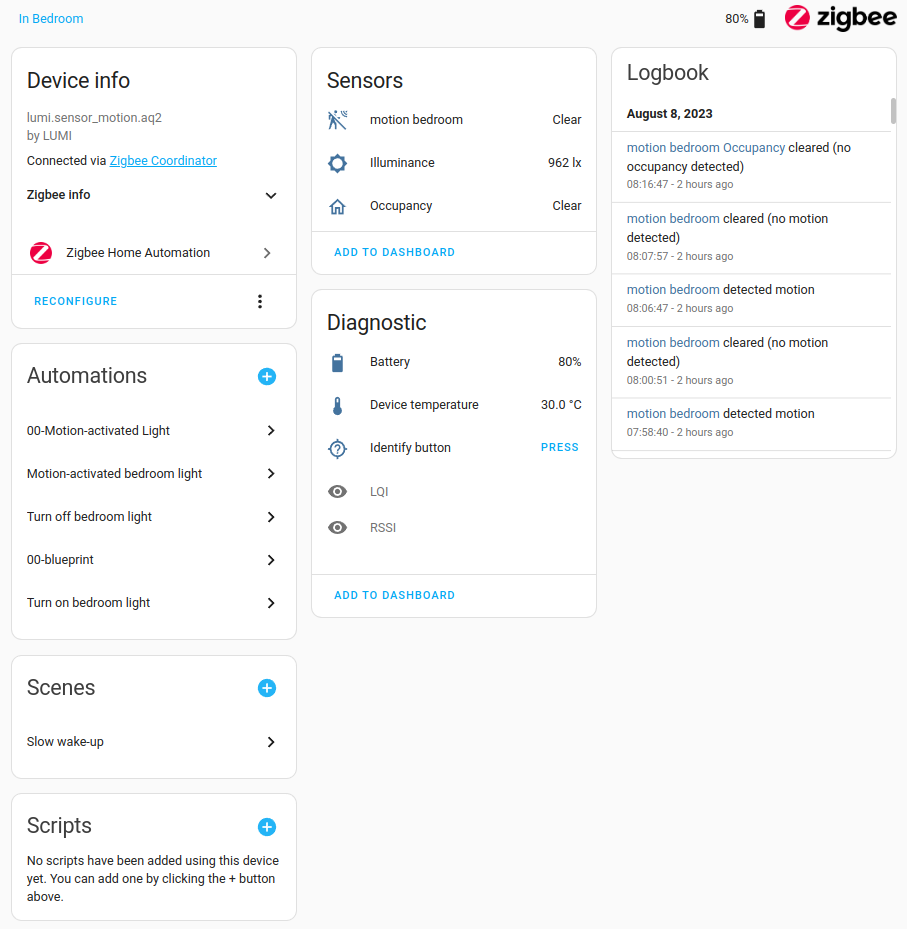
Devices and entities are used throughout Home Assistant. To name a few examples:
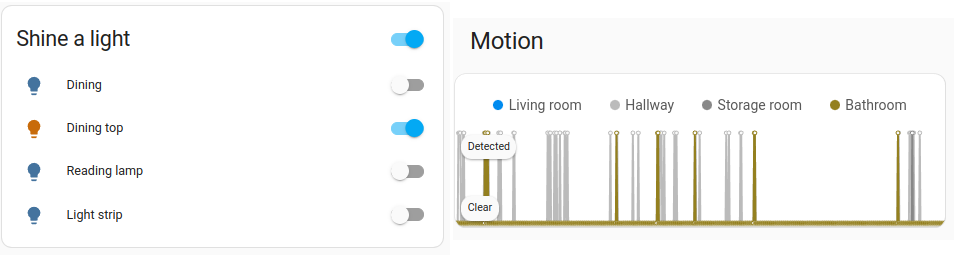
- Dashboards can show a state of an entityAn entity represents a sensor, actor, or function in Home Assistant. Entities are used to monitor physical properties or to control other entities. An entity is usually part of a device or a service. [Learn more]. For example, if a light is on or off.
- An automation can be triggered from a state change on an entityAn entity represents a sensor, actor, or function in Home Assistant. Entities are used to monitor physical properties or to control other entities. An entity is usually part of a device or a service. [Learn more]. For example, a motion sensor entity detects motion and triggers a light to turn on.
- A predefined color and brightness setting for a light can be saved as a scene.
Entities
Entities are the basic building blocks to hold data in Home Assistant. An entityAn entity represents a sensor, actor, or function in Home Assistant. Entities are used to monitor physical properties or to control other entities. An entity is usually part of a device or a service. [Learn more] represents a sensorSensors return information about a thing, for instance the level of water in a tank. [Learn more], actorAn entity that receives a control signal and performs an action in a system., or function in Home Assistant. Entities are used to monitor physical properties or to control other entitiesAn entity represents a sensor, actor, or function in Home Assistant. Entities are used to monitor physical properties or to control other entities. An entity is usually part of a device or a service. [Learn more]. An entityAn entity represents a sensor, actor, or function in Home Assistant. Entities are used to monitor physical properties or to control other entities. An entity is usually part of a device or a service. [Learn more] is usually part of a deviceA device is a model representing a physical or logical unit that contains entities. or a serviceThe term “service” in Home Assistant is used in the sense of an information service. For example, the municipal waste management service that provides entities for organic, paper, and packaging waste. In terms of functionality, the information service is like a device. It is called service to avoid confusion, as it does not come with a piece of hardware.. Entities have statesThe state holds the information of interest of an entity, for example, if a light is on or off. Each entity has exactly one state and the state only holds one value at a time. However, entities can store attributes related to that state such as brightness, color, or a unit of measurement. [Learn more].
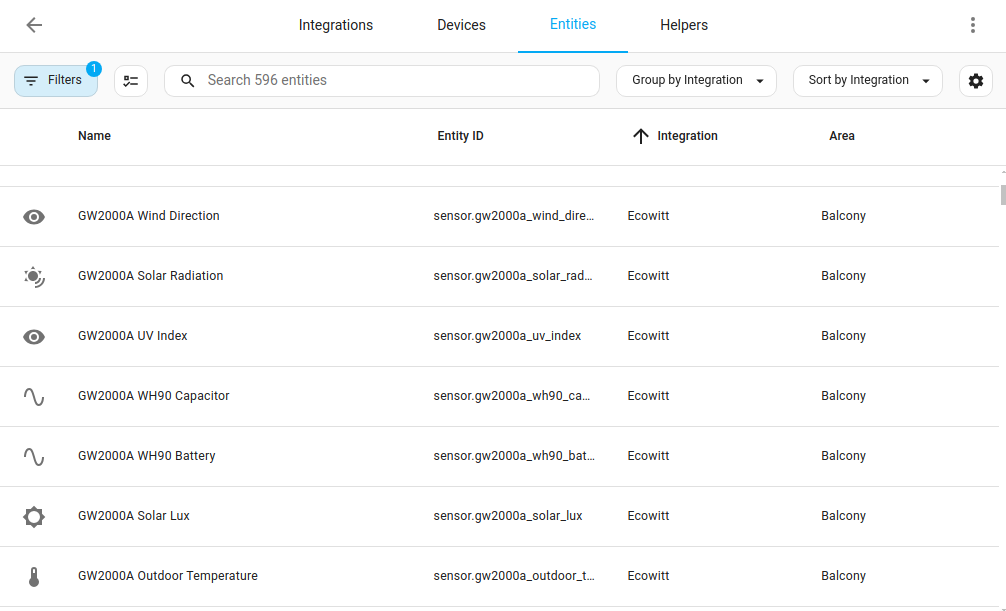 Screenshot of the Entities table. Each line represents an entity.
Areas
An area in Home Assistant is a logical grouping of devicesA device is a model representing a physical or logical unit that contains entities. and entitiesAn entity represents a sensor, actor, or function in Home Assistant. Entities are used to monitor physical properties or to control other entities. An entity is usually part of a device or a service. [Learn more] that are meant to match areas (or rooms) in the physical world: your home. For example, the living room area groups devices and entities in your living room. Areas allow you to target actions at an entire group of devices. For example, turning off all the lights in the living room.
These are locations within your home, such as the living room or the dance floor. Areas can be assigned to floorsA floor in Home Assistant is a logical grouping of areas that are meant to match the physical floors in your home. Devices & entities are not assigned to floors but to areas. Floors can be used in automations and scripts as a target for actions. For example, to turn off all the lights on the downstairs floor when you go to bed. [Learn more].
Areas can also be used for automatically generated cards, such as the Area card.
Automations
An automation runs a set of steps by itself when something changes in your home. For example, it turns on the lights in the living room when the sun sets. In the visual automation editor, an automation has three sections:
-
When: the triggersA trigger is the part of an automation that makes the automation start when something specific happens, for example, when the sun sets, a door opens, or a button is pressed. [Learn more]
- A trigger reacts to a change and starts the automation, for example, when the sun sets or a motion sensor detects motion.
-
And if: the conditionsConditions check whether something is true at that moment, for example, whether a door is closed. You can use them in automations and scripts. If a condition is not met, the actions that come after it in the same sequence do not run. At the top level of an automation or script, this stops the automation or script. [Learn more], which are optional
- A condition is a test that must be true for the automation to continue, for example, someone is home.
-
Then do: the actionsAn action makes Home Assistant do something, for example, turn on a light, send a notification, or activate a scene. Automations and scripts run a list of actions. [Learn more]
- The actions are what the automation does, for example, turn on a light, send a notification, or activate a scene.
- You can also add a condition between the actions. The actions after it then only run if the condition is true.
To learn the basics about automationsAutomations in Home Assistant allow you to automatically respond to things that happen in and around your home. [Learn more], refer to the automation basics page or try creating an automation yourself.
Scripts
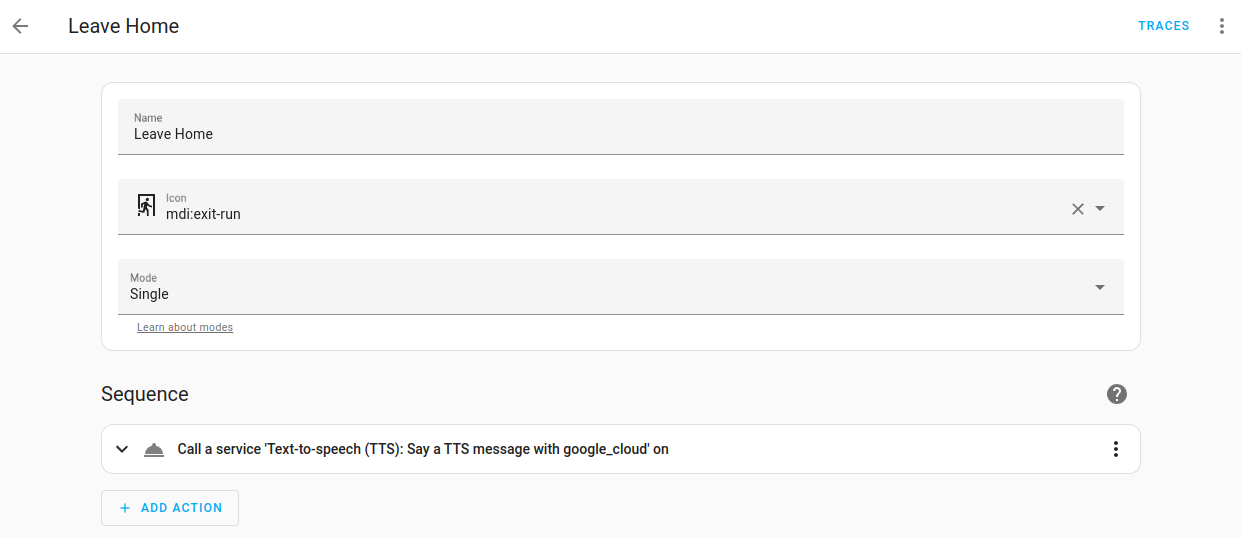
A script is a saved list of steps that runs when you start it, for example, from a button on a dashboard, with Assist, or from an automationAutomations in Home Assistant allow you to automatically respond to things that happen in and around your home. [Learn more]. A step can be an actionAn action makes Home Assistant do something, for example, turn on a light, send a notification, or activate a scene. Automations and scripts run a list of actions. [Learn more], such as turning on a light, or a building block, such as waiting a few seconds. Unlike an automation, a script has no triggers, so it doesn’t start by itself. Scripts are useful when you want to start the same steps from several places, or pass different values to the script each time, such as a message or a brightness level. To learn how to create and use scripts, refer to Scripts.
Scenes
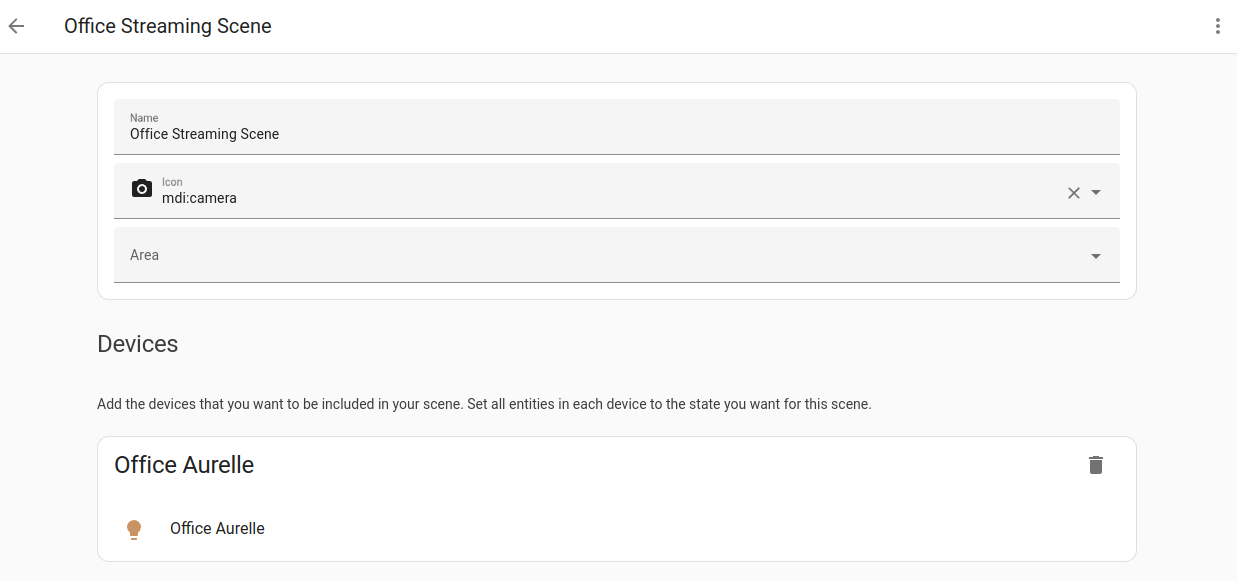
Scenes allow you to create predefined settings for your devicesA device is a model representing a physical or logical unit that contains entities.. Similar to a driving mode on phones, or driver profiles in cars, it can change an environment to suit you. For example, your watching films sceneScenes capture the states you want certain entities to be. For example, a scene can specify that light A should be turned on and light B should be bright red. [Learn more] may dim the lighting, switch on the TV and increase its volume. This can be saved as a sceneScenes capture the states you want certain entities to be. For example, a scene can specify that light A should be turned on and light B should be bright red. [Learn more] and used without having to set individual devicesA device is a model representing a physical or logical unit that contains entities. every time.
To learn how to use scenesScenes capture the states you want certain entities to be. For example, a scene can specify that light A should be turned on and light B should be bright red. [Learn more], refer to the scene documentation.
Apps
Apps are third-party applications that extend Home Assistant with additional functionality. They run alongside Home Assistant on the same system and are installed and managed from Home Assistant. Apps are only supported when using Home Assistant Operating SystemHome Assistant OS, the Home Assistant Operating System, is an embedded, minimalistic, operating system designed to run the Home Assistant ecosystem on single board computers (like the Raspberry Pi) or Virtual Machines. It includes Home Assistant Core, the Home Assistant Supervisor, and supports apps. Home Assistant Supervisor keeps it up to date, removing the need for you to manage an operating system. Home Assistant Operating System is the recommended installation type for most users..
Apps are installed from the app store under Settings > Apps. If you are curious now and feel like installing every app that looks interesting: beware that apps can use quite a bit of resources in terms of disk space, memory, and additional load on the processor.
Among the most used apps are the ones that provide file access and edit files in Home Assistant.
 Screenshot of the app store, showing all the installable apps.