

Installation
Home Assistant runs on your own hardware, so your smart home keeps working even when the internet is down and your data stays at home with you. The quickest way to start is with Home Assistant Green, which comes with Home Assistant already installed. Just add power and your network. You can also build your own hub with Home Assistant Yellow, install on a Raspberry Pi or a computer you already own, or run Home Assistant in a container or virtual machine. Pick the option below that fits you best.
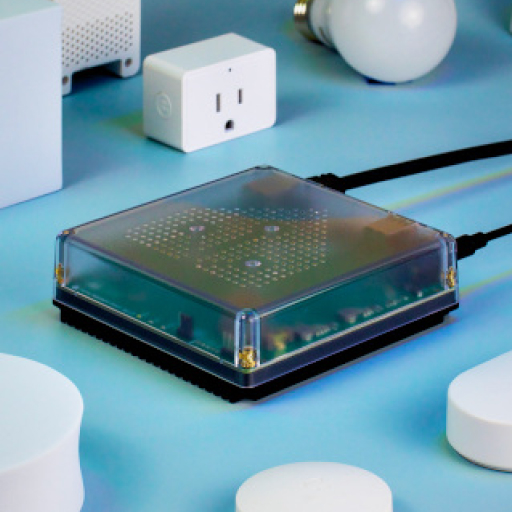
Start right away with Home Assistant Green
The affordable Home Assistant Green comes with Home Assistant Operating System already installed. Connect power and your network, and you're up and running. No assembly or flashing required.
Bring your own hardware
Flash Home Assistant Operating System onto hardware you already own, such as a Raspberry Pi, an Odroid, or an x86-64 machine. This is the recommended installation type for most people who bring their own hardware.
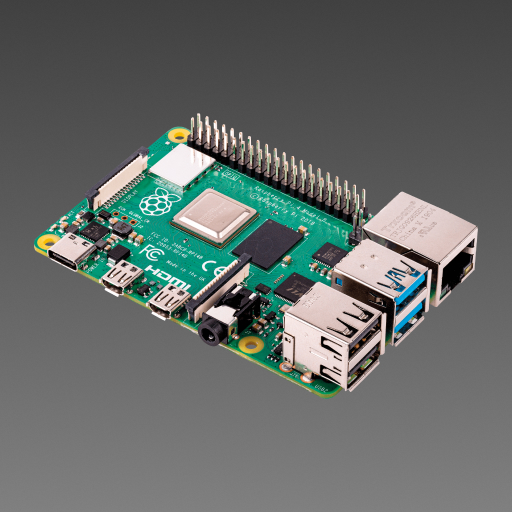
Install Home Assistant on Raspberry Pi
A great option if you already have a Raspberry Pi or want to put one to use.
- Assembling a Raspberry Pi setup
- Flashing a Raspberry Pi
- Setting up a system without a monitor or keyboard
- Raspberry Pi 4 or 5 with power supply (minimum 2 GB RAM)
- microSD memory card
- Ethernet connection
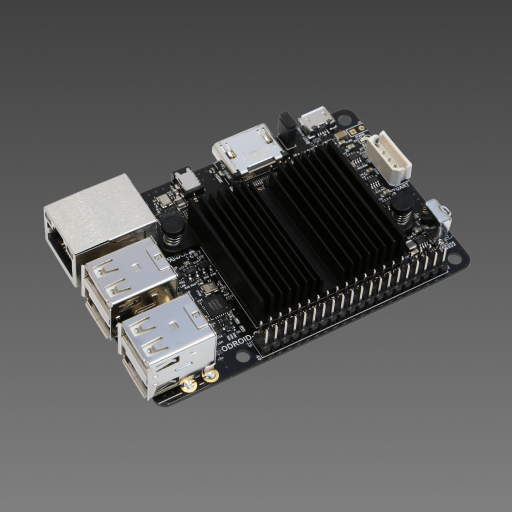
Install Home Assistant on Odroid devices
A more powerful alternative to Raspberry Pi
- Writing a boot image to an SD card or eMMC
- Installing an SD card or eMMC
- Setting up a system without a monitor or keyboard
- An Odroid device
- microSD memory card or eMMC
- Ethernet connection
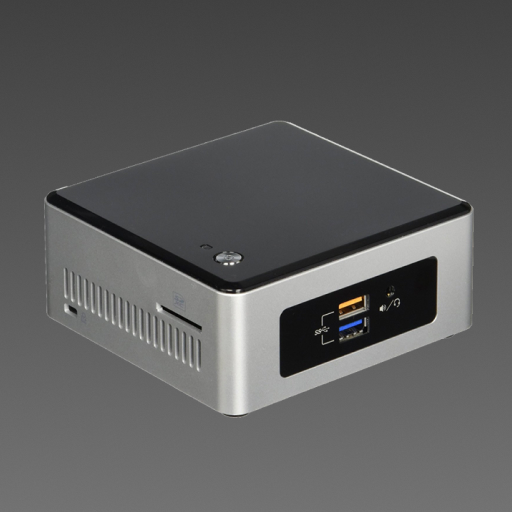
Use a container or virtual machine
Run Home Assistant on a system you manage yourself, using Docker or a virtual machine. These options suit people who are comfortable with the command line, containers, or virtualization. Container installations use Home Assistant Container, which doesn't include appsApps are additional standalone third-party software packages that can be installed on Home Assistant OS. [Learn more].
Install Home Assistant Container on Raspberry Pi
A low-cost DIY solution to get started with Home Assistant
- Assembling a Raspberry Pi setup
- Flashing a Raspberry Pi
- Working with a headless system
- Using Docker
- Using Linux command line
- Raspberry Pi 3, 4, or 5 with power supply
- microSD memory card
- Ethernet connection


About installation types
Home Assistant offers two different installation types. Home Assistant Operating System is the recommended installation type.
- Home Assistant Operating System: An embedded, minimalistic operating system designed to run the Home Assistant ecosystem on single board computers (like the Home Assistant Green or a Raspberry Pi) or Virtual Machines. It is the most convenient option in terms of installation and maintenance and it supports appsApps are additional standalone third-party software packages that can be installed on Home Assistant OS. [Learn more]. Home Assistant Operating System is the recommended installation type for most users.
-
Home Assistant Container: Container-based installation of Home Assistant. You need to bring your own system (such as Linux) with container orchestration (like Docker), and manually handle updates. Home Assistant Container installations don’t have access to appsApps are additional standalone third-party software packages that can be installed on Home Assistant OS. [Learn more].
- Note: Some integrations, such as Thread and Z-Wave, are controlled by appsApps are additional standalone third-party software packages that can be installed on Home Assistant OS. [Learn more]. There is no out-of-the-box support for these on Container installations.
| HA OS1 | Container1 | |
|---|---|---|
| Automations | ||
| Dashboards | ||
| Integrations | ||
| Apps | ||
| Blueprints | ||
| One-click updates | ||
| Backups |
- Home Assistant Operating System
- Home Assistant Container