Button
A button entityAn entity represents a sensor, actor, or function in Home Assistant. Entities are used to monitor physical properties or to control other entities. An entity is usually part of a device or a service. [Learn more] works like a physical push button: you press it to make something happen, such as restarting a router or identifying a device. It can be compared to a momentary switch, push button, or other form of stateless switch.
Unlike a switch, a button has no on or off state. Instead, it remembers when it was last pressed, so you can see when it was last used and react to each press in an automationAutomations in Home Assistant allow you to automatically respond to things that happen in and around your home. [Learn more].
Building block integration
This button is a building block integration that cannot be added to your Home Assistant directly but is used and provided by other integrations.
A building block integration differs from the typical integration that connects to a device or service. Instead, other integrations that do integrate a device or service into Home Assistant use this button building block to provide entities, services, and other functionality that you can use in your automations or dashboards.
If one of your integrations features this building block, this page documents the functionality the button building block offers.
The state of a button
The button entityAn entity represents a sensor, actor, or function in Home Assistant. Entities are used to monitor physical properties or to control other entities. An entity is usually part of a device or a service. [Learn more] is stateless. Unlike a normal switch entity, it does not have an on or off state.
The state of a button is a timestamp showing when the button was last pressed via the Home Assistant UI or an action.
 Screenshot showing the state of a button entity in Settings > Tools > States
In addition, the entity can have the following states:
- Unavailable: The entity is currently unavailable.
- Unknown: The state is not yet known.
You can use button entities in automations to react when a button is pressed, or to simulate pressing the button from Home Assistant, like pressing a physical button on the device itself.
List of triggers
The Button integrationIntegrations connect and integrate Home Assistant with your devices, services, and more. [Learn more] provides the following triggers. Each link below opens a dedicated page with examples, fields, and a step-by-step UI walkthrough.
-
Button pressed (
button.pressed) Triggers when one or more buttons are pressed.
For an overview of every trigger across all integrations, see the triggers reference.
List of actions
The Button integrationIntegrations connect and integrate Home Assistant with your devices, services, and more. [Learn more] provides the following actions. Each link below opens a dedicated page with examples, parameters, and a step-by-step UI walkthrough.
-
Press button (
button.press) Presses a button entity.
For an overview of every action across all integrations, see the actions reference.
Device class
A device class is a measurement categorization in Home Assistant. It influences how the entity is represented in the dashboard. This can be modified in the customize section. For example, different states may be represented by different icons, colors, or text.
The screenshot shows different icons representing different device classes for buttons:
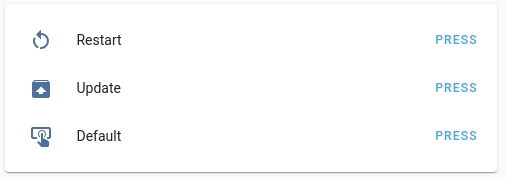 Example of device class icons.
The following device classes are supported for buttons:
- None: Generic button. This is the default and doesn’t need to be set.
- identify: The button is used to identify a device.
- restart: The button restarts the device.
- update: The button updates the software of the device.
Button automation examples
The following examples show how you can use button entities in automations.
You don’t need to edit YAML to use these examples. Copy a YAML snippet from this page, open the automation editor in Home Assistant, and press Ctrl+V (or Cmd+V on Mac). Home Assistant automatically converts the pasted YAML into the visual editor format, whether it’s a full automation, a single trigger, a condition, or an action.
Automation: send a notification when a button is pressed
Use the button trigger to react when you press a button entity, like a reset or maintenance button.
-
Trigger: Button pressed
- Target: Air purifier filter reset button
-
Action: Send a notification message
-
Target: My Device (
notify.my_device)
-
Target: My Device (
YAML example for a button-press notification
- alias: "Notify when the filter reset button is pressed"
  triggers:
    - trigger: button.pressed
      target:
        entity_id: button.air_purifier_reset_filter
  actions:
    - action: notify.send_message
      target:
        entity_id: notify.my_device
      data:
        message: "The air purifier filter reset button was pressed."
Automation: restart a device with a button action
Use the button action when an integration exposes a restart or update button that you want to run from an automation.
- Trigger: Internet connection turns off for 10 minutes
-
Action: Press button
- Target: Router restart button
YAML example for restarting a device with a button action
- alias: "Restart the router when the internet has been down"
  triggers:
    - trigger: state
      entity_id: binary_sensor.internet_connection
      to: "off"
      for: "00:10:00"
  actions:
    - action: button.press
      target:
        entity_id: button.router_restart