

BleBox devices
BleBox produces compact, low-power, feature-rich Wi-Fi devices for home automation. You can find the full product range on the BleBox products page and in the BleBox product catalog.
Use cases
- Control your blinds, shutters, and garage or gate automatically. For example, close them at sunset or when wind speed exceeds a set threshold.
- Manage your lights and dimmers from a single dashboard, and create automations that adjust brightness based on time of day or occupancy.
- Monitor energy consumption with a smartMeter DIN device and use the data in the Home Assistant energy dashboard.
- Automate your sauna or heating with a saunaBox or thermoBox by setting a target temperature so it is ready when you get home.
- Trigger automations from wall buttons and remotes by using an actionBox as a bridge, without replacing your existing switches.
- Get notified when a floodSensor detects water, or when air quality reported by an airSensor drops below an acceptable level.
Prerequisites
Before Home Assistant can discover your BleBox device, it must be connected to your Wi-Fi network.
- Follow the BleBox getting started guide to connect your device to your Wi-Fi network using the wBox app.
- Once connected, Home Assistant will discover the device automatically.
For the best experience, make sure your BleBox devices have the most recent available firmware installed.
Configuration
To add the BleBox devices device to your Home Assistant instance, use this My button:

BleBox devices can be auto-discovered by Home Assistant. If an instance was found, it will be shown as Discovered. You can then set it up right away.
If it wasn’t discovered automatically, don’t worry! You can set up a manual integration entry:
-
Browse to your Home Assistant instance.
-
In the bottom right corner, select the
Add Integration button. -
From the list, select BleBox devices.
-
Follow the instructions on screen to complete the setup.
The IP address or hostname of your BleBox device, for example 192.168.1.100 or blebox-device.local. Hostnames only work if they resolve on your local network. You can find the address in your router or in the wBox app.
The username for your BleBox device, if you have set up access credentials. This is optional.
Data updates
This integration uses local polling to fetch the current state of your BleBox devices. The polling interval depends on the entity type:
- Lights, sensors, switches, and climate entities are polled every 5 seconds.
- Binary sensors, buttons, and covers are polled every 30 seconds (the Home Assistant default).
BleBox controllers
rollerGate
This integration adds the Blebox device as a cover entity to Home Assistant.
Key supported features
- Open
- Close
- Position
- Stop
gateBox
This integration adds the BleBox device as a cover entity to Home Assistant.
Key supported features
- Open (trigger primary output)
- Close (trigger primary output)
- Gate state (open, close, unknown)
Additional features
The secondary output is exposed differently depending on how you configure it in the wBox app or on the device’s website:
- If it is set to stop, the cover entity supports Stop.
- If it is set to walk-in gate or another function, a button entity is added to trigger that output.
gateBox Pro
This integration adds the BleBox device as a cover entity to Home Assistant.
Key supported features
- Open (trigger primary output)
- Close (trigger primary output)
- Gate state (open, close, unknown)
Additional features
The secondary output is exposed differently depending on how you configure it in the wBox app or on the device’s website:
- If it is set to stop, the cover entity supports Stop.
- If it is set to walk-in gate or another function, a button entity is added to trigger that output.
doorBox
This integration adds the Blebox device as a cover entity to Home Assistant.
Key supported features
- Open
- Door state (open, close, unknown)
doorBox PRO
This integration adds the Blebox device as a cover entity to Home Assistant.
Key supported features
- Open
- Door state (open, close, unknown)
saunaBox
This integration adds the Blebox device as a climate entity to Home Assistant.
Key supported features
- On
- Off
- Setting target temperature
- Read current temperature
thermoBox
This integration adds the Blebox device as a climate entity and 2 sensor entities to Home Assistant.
Key supported features
- On
- Off
- Set target temperature
- Read current temperature
Additional features
- Changing operation mode (cooling/heating) requires direct access to device or from wBox app
shutterBox
This integration adds the Blebox device as a cover entity to Home Assistant.
Key supported features
- Open
- Close
- Stop
- Position
- Tilt regulation (90-degree and 180-degree modes)
shutterBoxDC
This integration adds the Blebox device as a cover entity to Home Assistant.
Key supported features
- Open
- Close
- Stop
- Position
- Tilt regulation
shutterBox DIN
This integration adds the Blebox device as a cover entity to Home Assistant.
Key supported features
- Open
- Close
- Stop
- Position
- Tilt regulation (90-degree and 180-degree modes)
switchBox
This integration adds the Blebox device as a switch entity and 3 sensor entities to Home Assistant.
Key supported features
- On
- Off
- Active power measurement
- Last hour energy consumption measurement
- Voltage measurement
switchBox DIN
This integration adds the Blebox device as a switch entity and 3 sensor entities to Home Assistant.
Key supported features
- On
- Off
- Active power measurement
- Last hour energy consumption measurement
- Voltage measurement
switchBoxD
This integration adds the Blebox device as 2 switch entities and 3 sensor entities to Home Assistant.
Key supported features
- On
- Off
- Active power measurement
- Last hour energy consumption measurement
- Voltage measurement
switchBoxD DIN
This integration adds the Blebox device as 2 switch entities and 3 sensor entities to Home Assistant.
Key supported features
- On
- Off
- Active power measurement
- Last hour energy consumption measurement
- Voltage measurement
switchBoxDC
This integration adds the Blebox device as a switch entity to Home Assistant.
Key supported features
- On
- Off
switchBoxD DC DIN
This integration adds the Blebox device as 2 switch entities to Home Assistant.
Key supported features
- On
- Off
switchBox LIGHT
This integration adds the Blebox device as a switch entity to Home Assistant.
Key supported features
- On
- Off
switchBoxT PRO
This integration adds the Blebox device as 3 switch entities to Home Assistant.
Key supported features
- On
- Off
dimmerBox
This integration adds the Blebox device as a light entity to Home Assistant.
Key supported features
- On
- Off
- Brightness
wLightBox
This integration adds the Blebox device to Home Assistant as:
- multiple MONO lights entities,
- 1 or 2 lights CCT entities,
- 1 light RGB or RGBW or RGBCCT entity.
Key supported features
- On
- Off
- Effects
- Brightness
- Color (RGB, RGBW, RGBCCT mode only)
- White temperature control (RGBCCT & CCT mode only)
Additional features
- Option to change control mode (linear / gamma correction) is available in wBox app.
- Option to change color mode (MONO/CCT) is available in wBox app.
- You can create your own effects. Creator of effects is available in wBox app.
- After a settings change, the device needs to be reloaded.
wLightBox PRO
This integration adds the Blebox device to Home Assistant as:
- multiple MONO lights entities,
- 1 or 2 lights CCT entities,
- 1 light RGB or RGBW or RGBCCT entity.
Key supported features
- On
- Off
- Effects
- Brightness
- Color (RGB, RGBW, RGBCCT mode only)
- White temperature control (RGBCCT & CCT mode only)
Additional features
- Option to change control mode (linear / gamma correction) is available in wBox app.
- Option to change color mode (MONO/CCT) is available in wBox app.
- You can create your own effects. Creator of effects is available in wBox app.
- After a settings change, the device needs to be reloaded.
wLightBoxS
This integration adds the Blebox device as a light entity to Home Assistant.
Key supported features
- On
- Off
- Effects
- Brightness
dacBoxD DC
This integration adds the Blebox device as 2 lights MONO or 1 light CCT entity to Home Assistant.
Key supported features
- On
- Off
- Brightness / linear percentage control (depends on device’s settings)
- White temperature control (CCT mode only)
- Effects
Additional features
- Option to change control mode (linear / gamma correction) is available in wBox app.
- Option to change color mode (MONO/CCT) is available in wBox app.
- Own effects are possible to create. Creator of effects is available in wBox app.
- After settings change, device needs to be reloaded.
wLightBoxS PRO
This integration adds the Blebox device as a light entity to Home Assistant.
Key supported features
- On
- Off
- Effects
- Brightness
pixelBox
This integration adds the Blebox device as a light entity to Home Assistant.
Key supported features
- On
- Off
- Effects
- Brightness
- Color
tempSensor
This integration adds the Blebox device as a sensor entity to Home Assistant.
Key supported features
- Periodic read of temperature
tempSensorAC
This integration adds the Blebox device as a sensor entity to Home Assistant.
Key supported features
- Periodic read of temperature for all probes
tempSensor PRO
This integration adds the Blebox device as a sensor entity to Home Assistant.
Key supported features
- Periodic read of temperature for all probes
tempSensor DIN
This integration adds the Blebox device as a sensor entity to Home Assistant.
Key supported features
- Periodic read of temperature for all probes
floodSensor
This integration adds the Blebox device as a moisture binary sensor entity to Home Assistant.
Key supported features
- Periodic read of moisture as either “detected” or “cleared”.
humiditySensor
This integration adds the Blebox device as a sensor entity to Home Assistant.
Key supported features
- Periodic read of humidity
- Periodic read of temperature
rainSensor
This integration adds the Blebox device as a binary sensor entity to Home Assistant.
Key supported features
- Periodic read of state of rain detection
inputSensorD
This integration adds the Blebox device as 2 binary sensor entities to Home Assistant.
Key supported features
- Periodic read of state of 2 input sensors
If you need an immediate response (without local polling delay), the device can also be integrated using webhooks and automation, in the same way as actionBox, actionBoxS, and proxiBox.
inputSensorQ
This integration adds the Blebox device as 4 binary sensor entities to Home Assistant.
Key supported features
- Periodic read of state of 4 input sensors
If you need an immediate response (without local polling delay), the device can also be integrated using webhooks and automation, in the same way as actionBox, actionBoxS, and proxiBox.
airSensor
This integration adds the Blebox device as a sensor entity to Home Assistant.
Key supported features
- Periodic read of:
- pm1
- pm2.5
- pm10
co2Sensor
This integration adds the Blebox device as 2 sensor entities to Home Assistant.
Key supported features
- Periodic read of CO2 concentration
- Periodic read of CO2 level description
windSensor PRO
This integration adds the Blebox device as a sensor entity to Home Assistant.
Key supported features
- Periodic read of current wind speed
luxSensor
This integration adds the Blebox device as a sensor entity to Home Assistant.
Key supported features
- Periodic read of illuminance (unit: lx)
openSensor
This integration adds the Blebox device as a sensor entity and a binary sensor entity to Home Assistant.
Key supported features
- Periodic read of open status (2 or 3 statuses depending on configuration)
- Periodic read of open/closed state (binary sensor)
Additional features
- An option to change the detection mode is available in the wBox app.
- After changing settings, the device needs to be reloaded.
energyMeter DIN
This integration adds the Blebox device as multiple sensor entities to Home Assistant.
Key supported features
- Periodic read of energy consumption (active and reactive, both forward and reverse)
- Periodic read of power (active, reactive, and apparent)
- Periodic read of voltage, current, and frequency
Additional features
- Option to configure the number of phases (1 or 3) is available in the wBox app.
- Option to enable/disable reverse energy measurement is available in the wBox app.
- After a settings change, the device needs to be reloaded.
actionBox, actionBoxS, and proxiBox
This integration does not add direct support for actionBox, actionBoxS, and proxiBox devices. It is however possible to integrate these devices with Home Assistant using automations via webhooks and wBox mobile app.
- With actionBox and its 4 inputs, you can configure up to 8 automations in Home Assistant (short and long press for each button).
- With actionBoxS and proxiBox, each with a single input, you can configure up to 2 automations in Home Assistant (short and long press / touch)
Integrating actionBox, actionBoxS, or proxiBox with Home Assistant using webhooks consists of two steps:
Generating the compatible webhook in Home Assistant
-
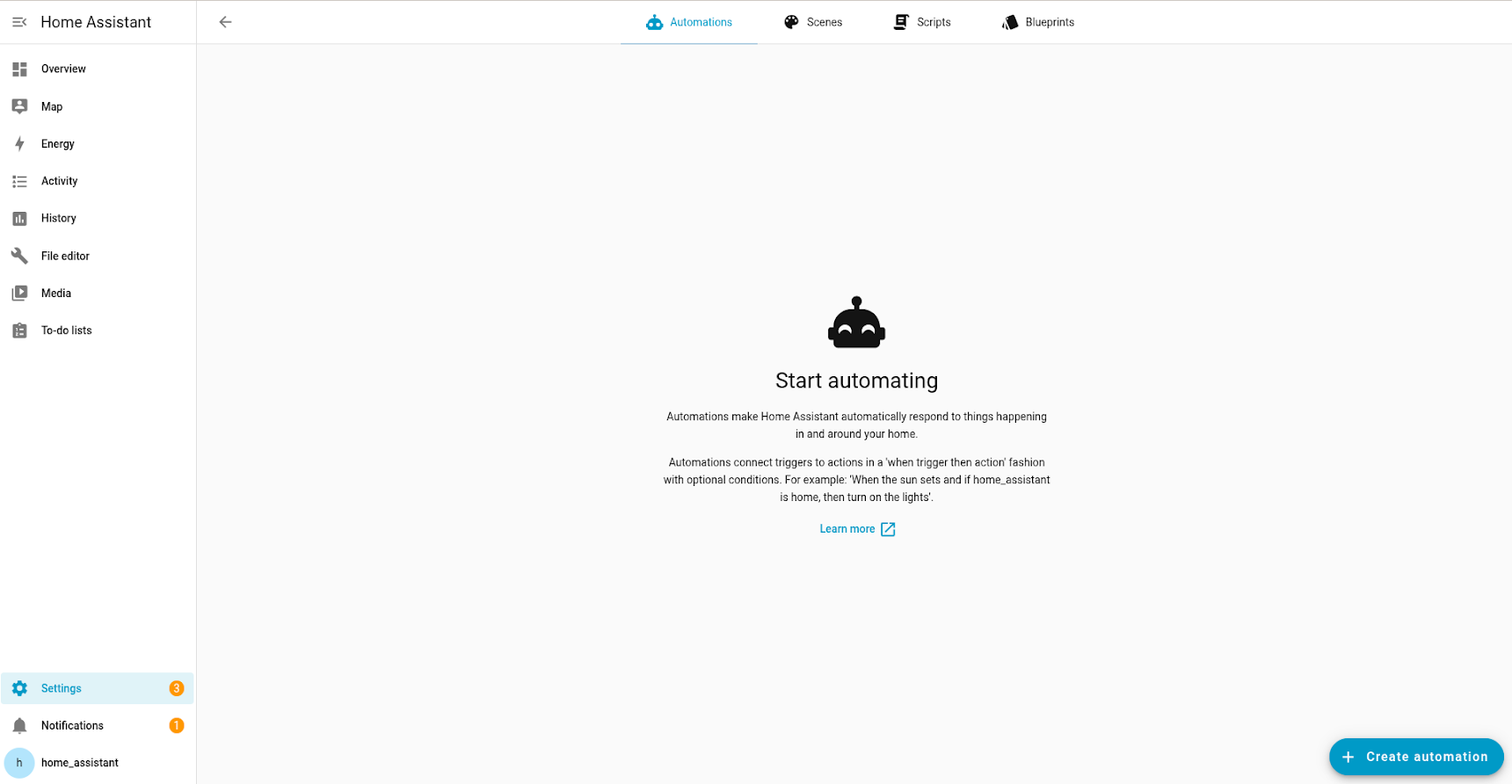
Go to Settings > Automations & scenes and in the lower right corner, select the Create automation button.
-
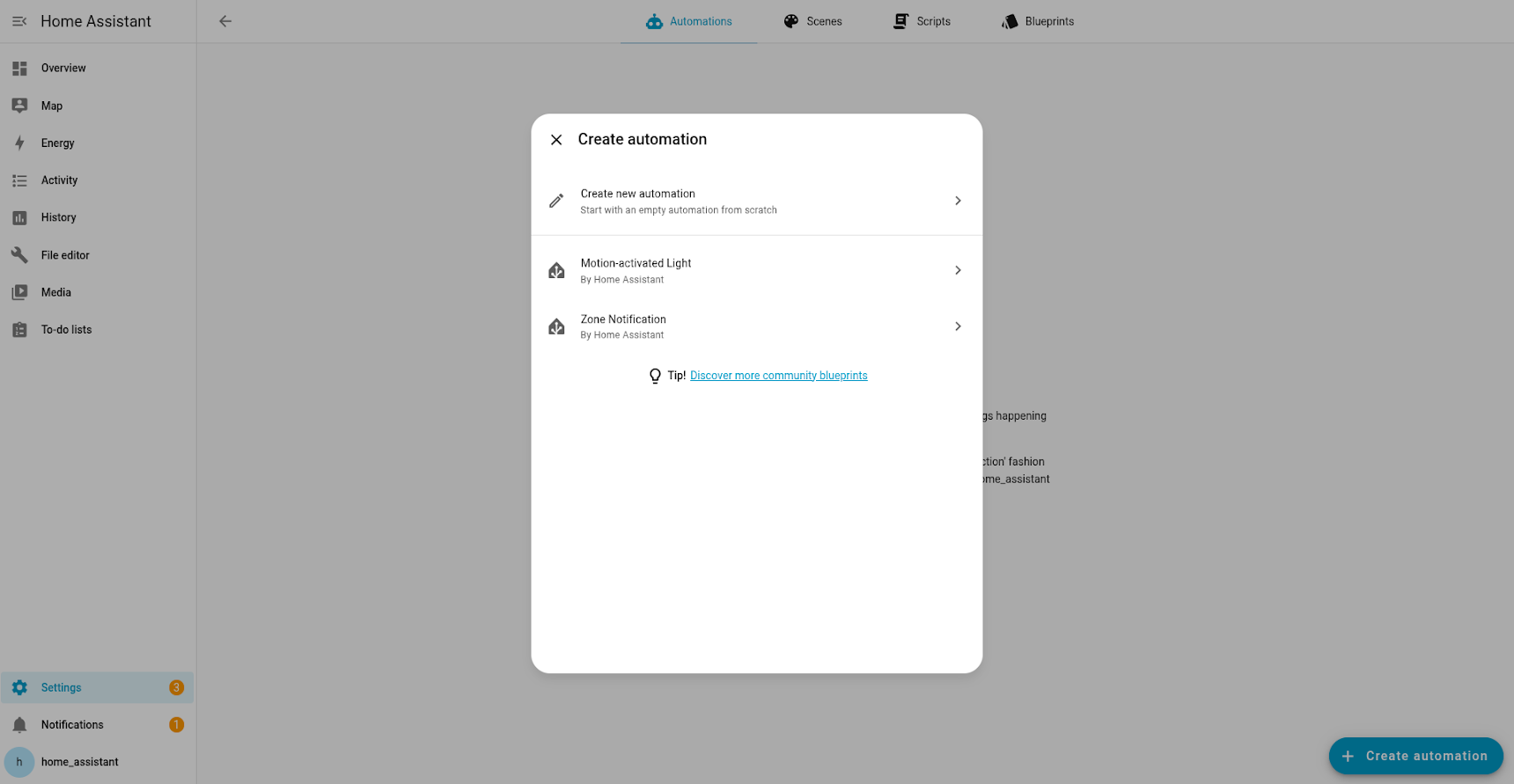
Select Create new automation.
-
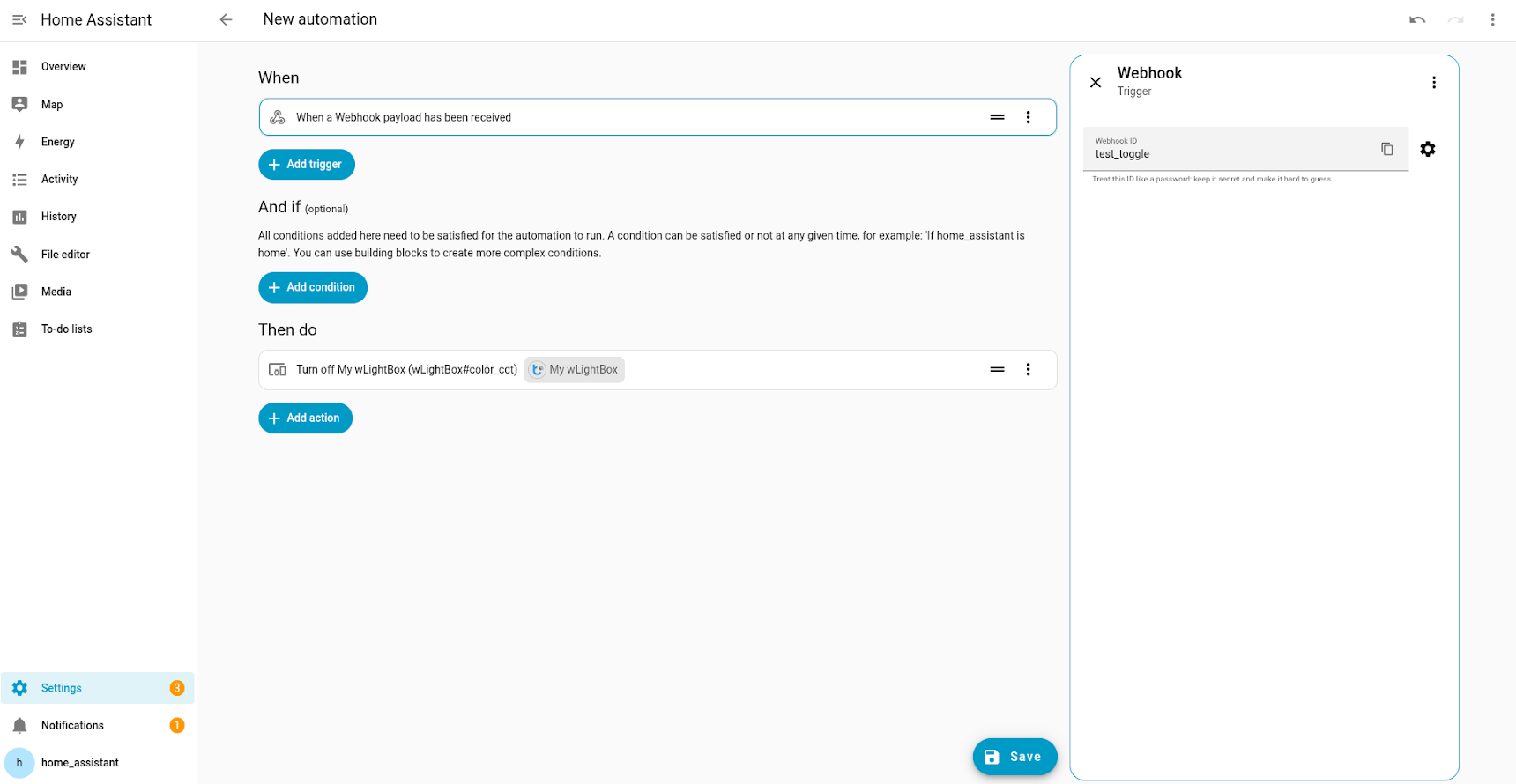
Choose Webhook as the trigger type. Note the webhook ID. You will need it later.
-
Next to the webhook ID, select the
cog icon and make sure the GET method is enabled. 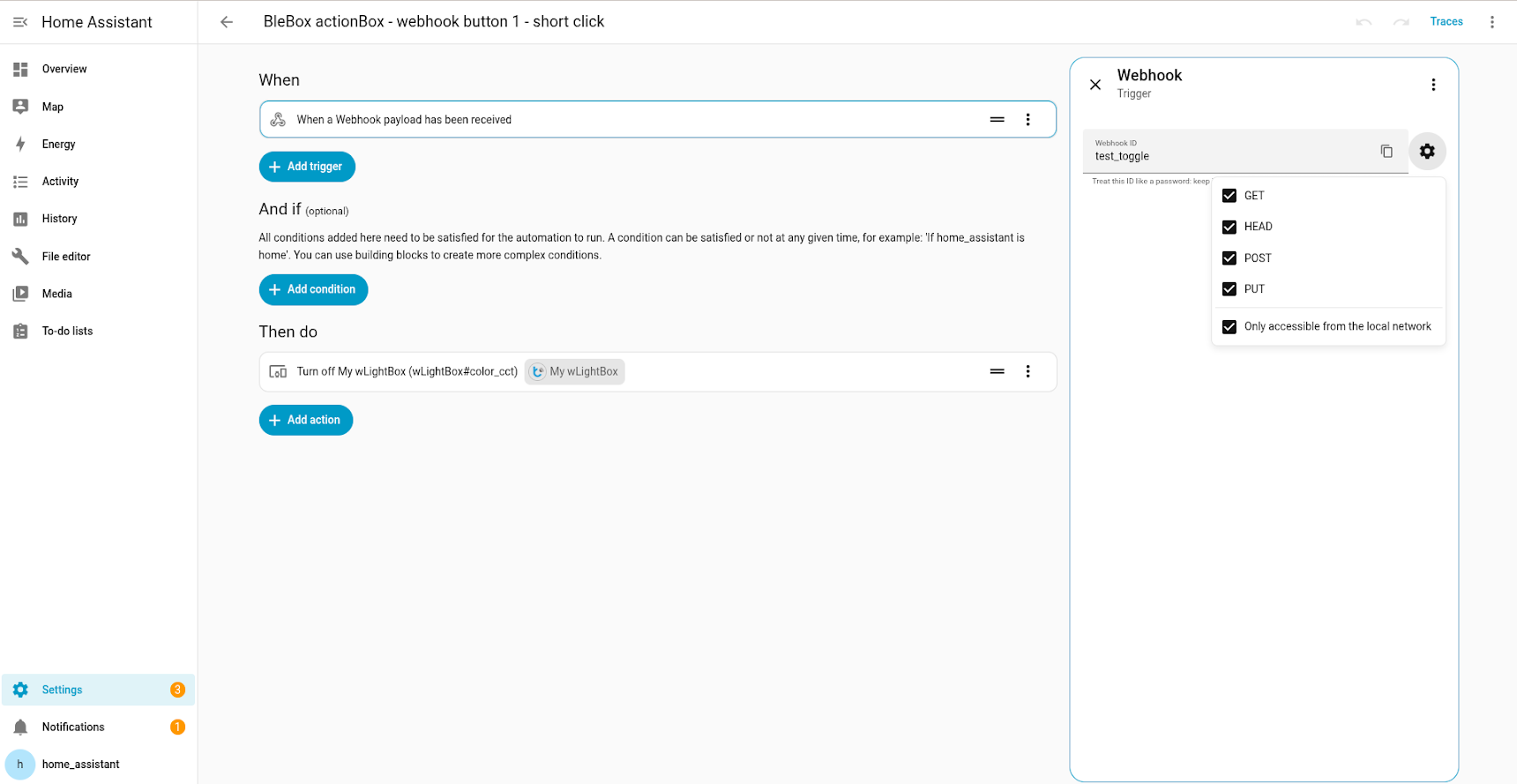
-
Copy the webhook URL to the clipboard by selecting the copy icon next to the webhook ID. Save it for later.
-
If applicable, add any desired conditions (the And if section) and actions (the Then do section).
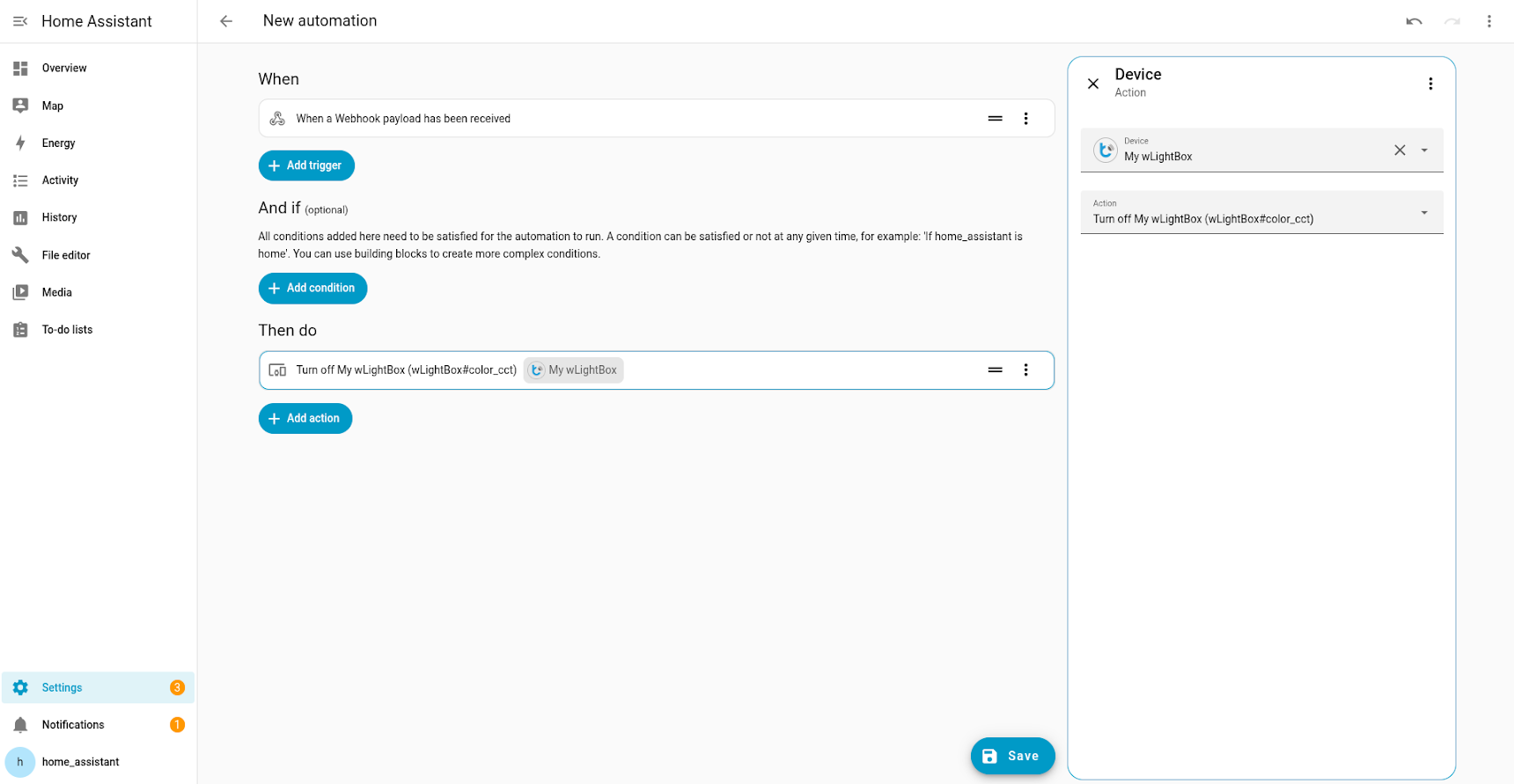
The webhook ID will be later needed in phase two and will have to be entered into the wBox mobile app. You may decide to use a more convenient text value. However, remember that this is the only thing that authenticates webhooks within your network. Treat this ID like a password.
Configuring the device in the wBox app
-
Configure the device by adding the action of type “send URL”.
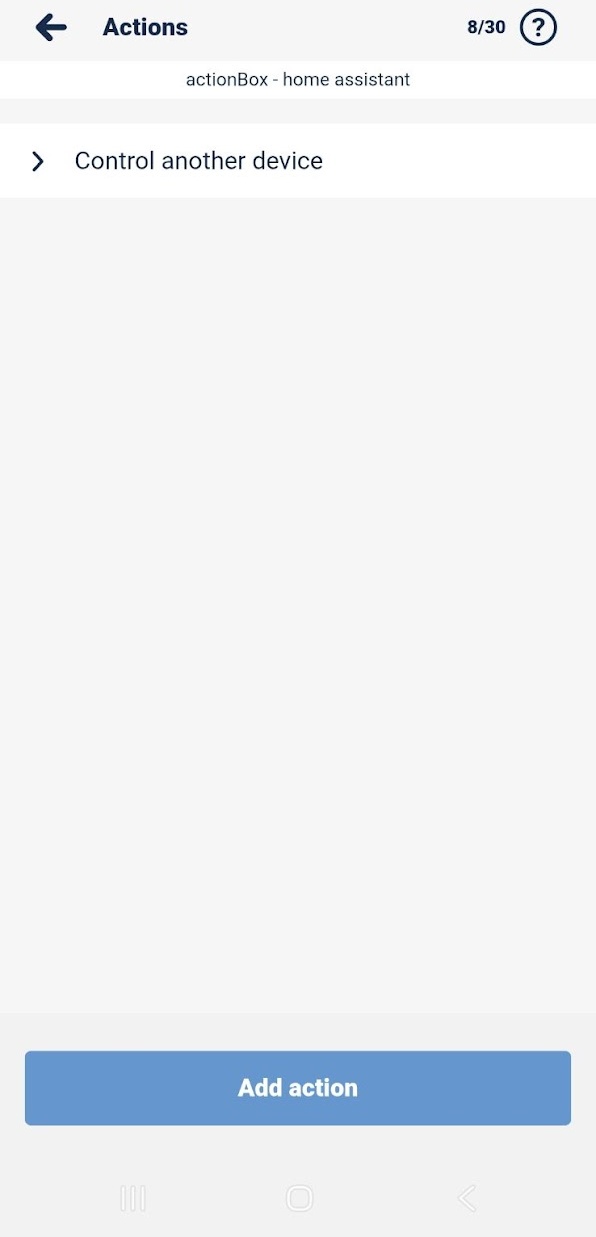
-
Enter the webhook URL that you copied when generating the webhook. It is the URL address for the action.
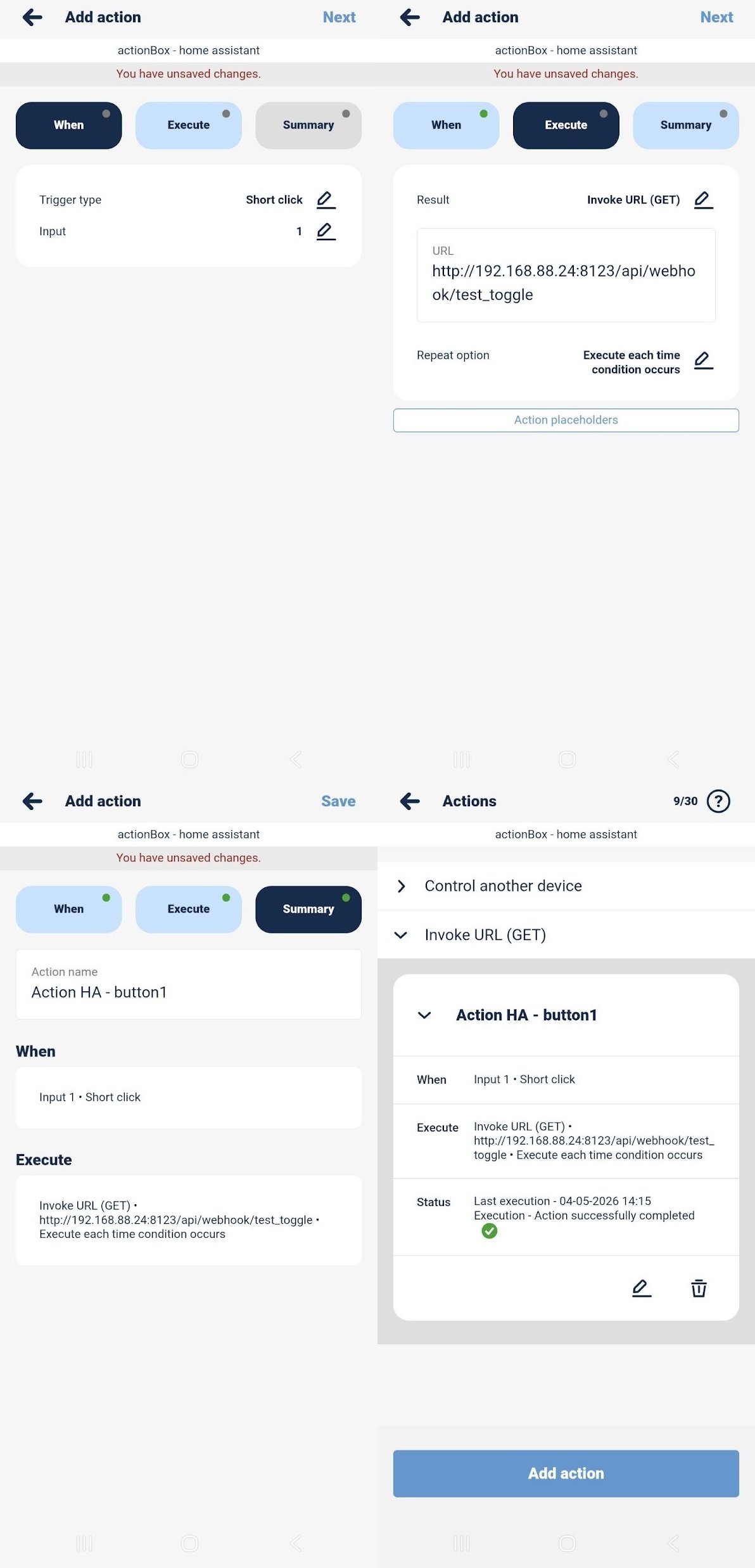
In order for this integration flow to work, the webhook URL host must be resolvable and accessible within the device network. If in doubt, please refer to the general documentation of automations with webhook triggers.
uRemote, sRemote, inBox via actionBox
μWiFi remotes can be integrated with Home Assistant indirectly, using an actionBox as a bridge (hub) between the remote and Home Assistant.
Remotes simulate a specific trigger. Unlike physical buttons, only a single defined trigger is activated, not all matching patterns. For example, the “rising edge” trigger does not activate together with a “short press”, as would happen when pressing a physical button connected to a controller input. This allows for a higher number of available control actions when actionBox is a hub for μWiFi remotes.
Up to 20 different remotes can be paired with a single actionBox. The actionBox provides 5 types of triggers and 4 inputs, allowing up to 20 different automations through a single actionBox controller acting as a hub. The following μWiFi remotes are supported:
- μRemote (4 channels, 3 buttons per channel = 12 automations)
- sRemote (1 channel, 4 buttons = 4 automations)
- inBox (4 channels, each supporting short and long press = 8 automations)
When a μWiFi remote is paired with an actionBox, pressing a button on the remote simulates a trigger on a specific input of the actionBox. For example, pressing button 1 on a μRemote paired with an actionBox fires all actions configured with the trigger “short press on input 1” on that actionBox.
Integrating a μWiFi remote via actionBox consists of three steps:
- Generating the compatible webhook in Home Assistant
- Configuring the device in the wBox app
- Configuring the remote in the wBox app
Configuring the remote in the wBox app
-
Pair the remote with the actionBox according to the remote’s pairing instructions available on the Blebox manuals page.
-
In the wBox app, go to the actionBox settings and select the Remote controls tab.
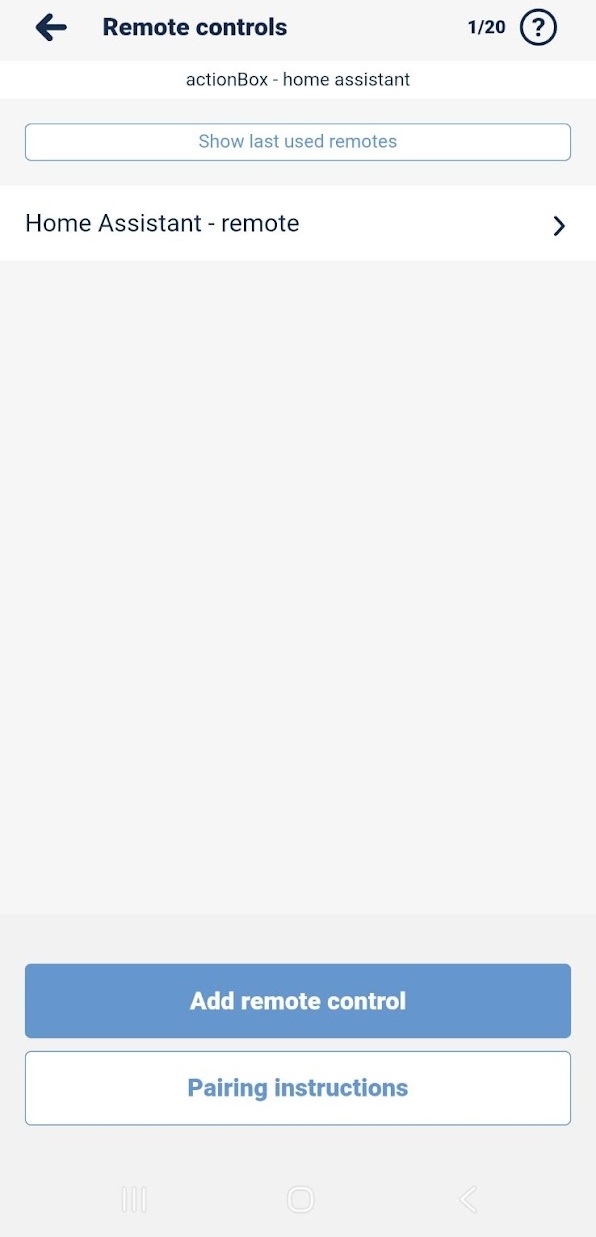
-
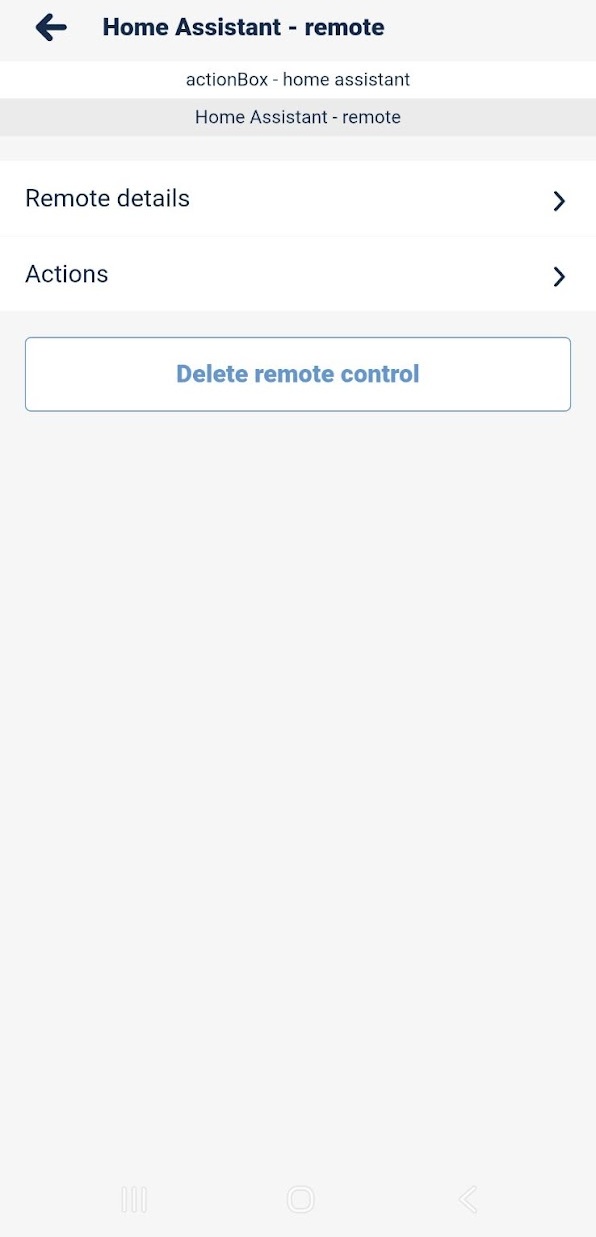
Select the paired remote and then select Actions.
-
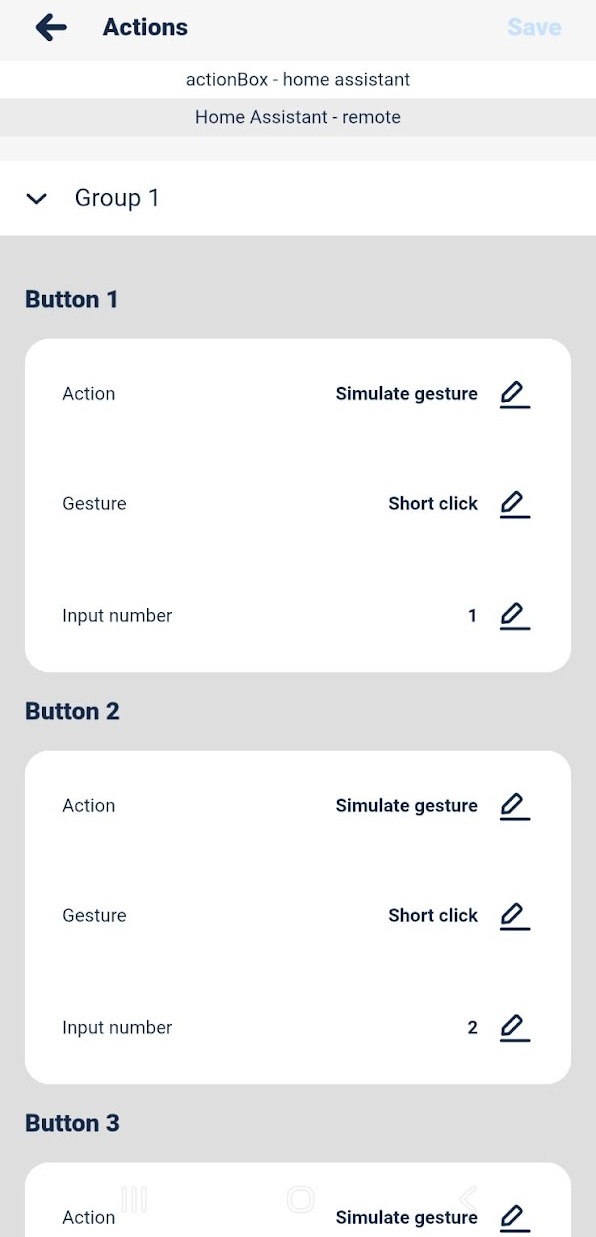
Edit the remote actions:
- Select the trigger the remote button should simulate, for example “short press”.
- Select the actionBox input the remote button should simulate, for example input 1.
-
Once configured, pressing a button on the remote triggers the actionBox, which calls the webhook URL you set up in the Generating the compatible webhook in Home Assistant section.
“BleBox inside” - Simon 24 GO
Simon 24 GO is a range of wall switches and accessories with integrated BleBox Wi-Fi modules. The full product range is available in the Simon 24 GO catalog.
Simon 24 GO SHUTTER (NEZ1W.01)
This integration adds the Simon 24 GO device (“blebox inside”) as a cover entity to Home Assistant.
Key supported features
- Open
- Close
- Stop
- Position
- Tilt regulation (90-degree and 180-degree modes)
Simon 24 GO SWITCHSHUTT
This integration adds the Simon 24 GO device (“blebox inside”) as a switch entity to Home Assistant.
Key supported features
- On
- Off
Simon 24 GO SWITCH (NEW1W.01)
This integration adds the Simon 24 GO device (“blebox inside”) as a switch entity and 2 sensor entities to Home Assistant.
Key supported features
- On
- Off
- Active power measurement
- Last hour energy consumption measurement
Simon 24 GO SWITCH D (NEW2W.01)
This integration adds the Simon 24 GO device (“blebox inside”) as a switch entity and 2 sensor entities to Home Assistant.
Key supported features
- On
- Off
- Active power measurement
- Last hour energy consumption measurement
Simon 24 GO SWITCH Q (NEW4W.01)
This integration adds the Simon 24 GO device (“blebox inside”) as a switch entity to Home Assistant.
Key supported features
- On
- Off
Simon 24 GO DIMMER 230V (NESL1W.01)
This integration adds the Simon 24 GO device (“blebox inside”) as a light entity to Home Assistant.
Key supported features
- On
- Off
- Brightness
Simon 24 GO LED MONO
This integration adds the Simon 24 GO device (“blebox inside”) as a light entity to Home Assistant.
Key supported features
- On
- Off
- Effects
- Brightness
Simon 24 GO RGBW (NESRGB1W.01)
This integration adds the Simon 24 GO device (“blebox inside”) to Home Assistant as:
- multiple MONO lights entities,
- 1 or 2 lights CCT entities,
- 1 light RGB or RGBW entity.
Key supported features
- On
- Off
- Effects
- Brightness
- Color (RGB, RGBW mode only)
- White temperature control (CCT mode only)
Additional features
- Option to change control mode (linear / gamma correction) is available in wBox app.
- Option to change color mode (MONO/CCT) is available in wBox app.
- You can create your own effects. Creator of effects is available in wBox app.
- After a settings change, the device needs to be reloaded.
Simon 24 GO CONTROL (NEK1W.01) and Simon 24 GO GROUPSHUTT
This integration does not add direct support for Simon 24 GO Control and Simon 24 GO groupShutt devices. It is, however, possible to integrate these devices with Home Assistant using automations via webhooks and the wBox mobile app.
- With Simon 24 GO Control and its 4 buttons, you can configure up to 8 automations in Home Assistant (short and long press for each button).
The configuration consists of two steps:
Simon 24 GO CONTROL B (NENB1W.01)
This integration does not add direct support for the Simon 24 GO Control B device. However, it is possible to integrate this device with Home Assistant indirectly, using an actionBox as a bridge, in the same way as uRemote, sRemote, inBox via actionBox.
“BleBox inside” - Simon 54 GO
Simon 54 GO is a range of wall switches and accessories with integrated BleBox Wi-Fi modules. The full product range is available in the Simon 54 GO catalog.
Simon 54 GO SHUTTER (DEZ1W.01)
This integration adds the Simon 54 GO device (“blebox inside”) as a cover entity to Home Assistant.
Key supported features
- Open
- Close
- Stop
- Position
- Tilt regulation (90-degree and 180-degree modes)
Simon 54 GO SWITCHSHUTT
This integration adds the Simon 54 GO device (“blebox inside”) as a switch entity to Home Assistant.
Key supported features
- On
- Off
Simon 54 GO SWITCH (DEW1WA.01)
This integration adds the Simon 54 GO device (“blebox inside”) as a switch entity and 2 sensor entities to Home Assistant.
Key supported features
- On
- Off
- Active power measurement
- Last hour energy consumption measurement
Simon 54 GO SWITCH D (DEW2W.01)
This integration adds the Simon 54 GO device (“blebox inside”) as a switch entity and 2 sensor entities to Home Assistant.
Key supported features
- On
- Off
- Active power measurement
- Last hour energy consumption measurement
Simon 54 GO SWITCH Q (DEW4W.01)
This integration adds the Simon 54 GO device (“blebox inside”) as a switch entity to Home Assistant.
Key supported features
- On
- Off
Simon 54 GO DIMMER 230V (DESL1W.01)
This integration adds the Simon 54 GO device (“blebox inside”) as a light entity to Home Assistant.
Key supported features
- On
- Off
- Brightness
Simon 54 GO LED MONO (DESW1W.01)
This integration adds the Simon 54 GO device (“blebox inside”) as a light entity to Home Assistant.
Key supported features
- On
- Off
- Effects
- Brightness
Simon 54 GO RGBW (DESRGB1W.01)
This integration adds the Simon 54 GO device (“blebox inside”) to Home Assistant as:
- multiple MONO lights entities,
- 1 or 2 lights CCT entities,
- 1 light RGB or RGBW entity.
Key supported features
- On
- Off
- Effects
- Brightness
- Color (RGB, RGBW mode only)
- White temperature control (CCT mode only)
Additional features
- Option to change control mode (linear / gamma correction) is available in wBox app.
- Option to change color mode (MONO/CCT) is available in wBox app.
- You can create your own effects. Creator of effects is available in wBox app.
- After a settings change, the device needs to be reloaded.
Simon 54 GO CONTROL (DEK1W.01) and Simon 54 GO GROUPSHUTT
This integration does not add direct support for Simon 54 GO Control and Simon 54 GO groupShutt devices. It is, however, possible to integrate these devices with Home Assistant using automations via webhooks and the wBox mobile app.
- With Simon 54 GO Control and its 4 buttons, you can configure up to 8 automations in Home Assistant (short and long press for each button).
The configuration consists of two steps:
Simon 54 GO CONTROL B (DENB1W.01)
This integration does not add direct support for the Simon 24 GO Control B device. However, it is possible to integrate this device with Home Assistant indirectly, using an actionBox as a bridge, in the same way as uRemote, sRemote, inBox via actionBox.
“BleBox inside” - Simon 55 GO
Simon 55 GO is a range of wall switches and accessories with integrated BleBox Wi-Fi modules. The full product range is available in the Simon 55 GO catalog.
Simon 55 GO SHUTTER (TEZ1W.01)
This integration adds the Simon 55 GO device (“blebox inside”) as a cover entity to Home Assistant.
Key supported features
- Open
- Close
- Stop
- Position
- Tilt regulation (90-degree and 180-degree modes)
Simon 55 GO SOCKET (TEGZ1W.02)
This integration adds the Simon 55 GO device (“blebox inside”) as a switch entity and 3 sensor entities to Home Assistant.
Key supported features
- On
- Off
- Active power measurement
- Last hour energy consumption measurement
- Voltage measurement
Simon 55 GO SWITCHSHUTT
This integration adds the Simon 55 GO device (“blebox inside”) as a switch entity to Home Assistant.
Key supported features
- On
- Off
Simon 55 GO SWITCH (TEW1W.01)
This integration adds the Simon 55 GO device (“blebox inside”) as a switch entity and 2 sensor entities to Home Assistant.
Key supported features
- On
- Off
- Active power measurement
- Last hour energy consumption measurement
Simon 55 GO SWITCH D (TEW2W.01)
This integration adds the Simon 55 GO device (“blebox inside”) as a switch entity and 2 sensor entities to Home Assistant.
Key supported features
- On
- Off
- Active power measurement
- Last hour energy consumption measurement
Simon 55 GO SWITCH Q (TEW4W.01)
This integration adds the Simon 55 GO device (“blebox inside”) as a switch entity to Home Assistant.
Key supported features
- On
- Off
Simon 55 GO DIMMER 230V (TESL1W.01)
This integration adds the Simon 55 GO device (“blebox inside”) as a light entity to Home Assistant.
Key supported features
- On
- Off
- Brightness
Simon 55 GO LED MONO (TESW1W.01)
This integration adds the Simon 55 GO device (“blebox inside”) as a light entity to Home Assistant.
Key supported features
- On
- Off
- Effects
- Brightness
Simon 55 GO RGBW (TESRGB1W.01)
This integration adds the Simon 55 GO device (“blebox inside”) to Home Assistant as:
- multiple MONO lights entities,
- 1 or 2 lights CCT entities,
- 1 light RGB or RGBW entity.
Key supported features
- On
- Off
- Effects
- Brightness
- Color (RGB, RGBW mode only)
- White temperature control (CCT mode only)
Additional features
- Option to change control mode (linear / gamma correction) is available in wBox app.
- Option to change color mode (MONO/CCT) is available in wBox app.
- You can create your own effects. Creator of effects is available in wBox app.
- After a settings change, the device needs to be reloaded.
Simon 55 GO THERMO (TETD2W.01)
This integration adds the Simon 55 GO device (“blebox inside”) as a climate entity and 2 sensor entities to Home Assistant.
Key supported features
- On
- Off
- Set target temperature
- Read current temperature
Simon 55 GO CONTROL (TEK1W.01) and Simon 55 GO GROUPSHUTT
This integration does not add direct support for Simon 55 GO Control and Simon 55 GO groupShutt devices. It is however possible to integrate these devices with Home Assistant using automations via webhooks and wBox mobile app.
- With Simon 55 GO Control and its 4 buttons, you can configure up to 8 automations in Home Assistant (short and long press for each button).
The configuration consists of two steps:
Simon 55 GO CONTROL B (TENB1W.01)
This integration does not add direct support for the Simon 24 GO Control B device. However, it is possible to integrate this device with Home Assistant indirectly, using an actionBox as a bridge, in the same way as uRemote, sRemote, inBox via actionBox.
“BleBox inside” - other manufacturers
The following devices use BleBox Wi-Fi modules embedded by other manufacturers. Each device is sold under its own brand.
FAKRO FTP-V/FTU-V WiFi
This integration adds the Fakro device (“blebox inside”) as a cover entity to Home Assistant.
Key supported features
- Open
- Close
- Position
FAKRO ARF/ARP WiFi
This integration adds the Fakro device (“blebox inside”) as a cover entity to Home Assistant.
Key supported features
- Open
- Close
- Position
FAKRO ARZ/AMZ/VMZ WiFi
This integration adds the Fakro device (“blebox inside”) as a cover entity to Home Assistant.
Key supported features
- Open
- Close
- Position
SABAJ TV K-SMRT-4 - WIFI RJ-45
This integration adds the SABAJ device (“blebox inside”) as a button entity to Home Assistant.
Key supported features
- Open
- Close
- Up
- Down
- Fav
Wiśniowski RiCo
This integration adds the Wiśniowski device (“blebox inside”) as a cover entity to Home Assistant.
- Open (trigger primary output)
- Close (trigger primary output)
- Stop (trigger secondary output)
- Gate state (open, close, unknown) - only Pro version
Additional features
- “stop” requires setting your device’s secondary trigger as stop (via website or phone app)
Polfendo smartGateControl
This integration adds the Polfendo device (“blebox inside”) as a cover entity to Home Assistant.
Key supported features
- Open
- Close
- Position
- Stop
Plast-met SMART LIGHT BOSSPIO
This integration adds the Plast-met device (“blebox inside”) as a light entity to Home Assistant.
Key supported features
- On
- Off
- Effects
- Brightness
Plast-met SMART LIGHT SIMPIO
This integration adds the Plast-met device (“blebox inside”) as a light entity to Home Assistant.
Key supported features
- On
- Off
- Effects
- Brightness
Tedee relay module
This integration adds the Tedee device (“blebox inside”) as a cover entity to Home Assistant.
Key supported features
- Open
- Door state (open, close, unknown)
DARCO ERO-32WS-0
This integration adds the DARCO device (“blebox inside”) as a light entity to Home Assistant.
Key supported features
- On
- Off
- Effects
- Brightness
SELT pergola DC
This integration adds the SELT device (“blebox inside”) as a cover entity to Home Assistant.
Key supported features
- Open
- Close
- Position
- Tilt regulation
SELT smartScreen
This integration adds the SELT device (“blebox inside”) as a cover entity to Home Assistant.
Key supported features
- Open
- Close
- Position
- Tilt regulation
Wikęd doorUnit
This integration adds the Wikęd device (“blebox inside”) as a cover entity to Home Assistant.
Key supported features
- Open
- Door state (open, close, unknown)
Pstryk smartEnergyMeter
This integration adds the Pstryk device (“blebox inside”) as multiple sensor entities to Home Assistant.
Key supported features
- Periodic read of energy consumption (active and reactive, both forward and reverse)
- Periodic read of power (active, reactive, and apparent)
- Periodic read of voltage, current, and frequency
Additional features
- Option to configure the number of phases (1 or 3) is available in the wBox app.
- Option to enable/disable reverse energy measurement is available in the wBox app.
- After a settings change, the device needs to be reloaded.
Drutex SmartWindow
This integration adds the Drutex device (“blebox inside”) as a sensor entity and a binary sensor entity to Home Assistant.
Key supported features
- Periodic read of open status (from 2 to 5 statuses depending on configuration)
- Periodic read of open/closed state (binary sensor)
Additional features
- An option to change the detection mode is available in the wBox app.
- After changing settings, the device needs to be reloaded.
Examples
Close shutters at sunset
Leaving shutters open after dark can affect your privacy and home security. You can use this blueprint to automatically close your shutterBox blinds every day at sunset.

Prefer to configure this automation manually? Use the YAML below.
Automation YAML
Replace the placeholder values with values from your Home Assistant instance.
alias: Close shutters at sunset
trigger:
  - trigger: sun
    event: sunset

action:
  - action: cover.close_cover
    target:
      entity_id: YOUR_COVER_ENTITY
Close the gate when leaving home
It is easy to forget to close the gate when leaving in a hurry. You can use this blueprint to automatically close your gateBox or rollerGate when the last person leaves home.
Prefer to configure this automation manually? Use the YAML below.
Automation YAML
Replace the placeholder values with values from your Home Assistant instance.
alias: Close gate when leaving home
trigger:
  - trigger: state
    entity_id: zone.home
    to: "0"

action:
  - action: cover.close_cover
    target:
      entity_id: YOUR_COVER_ENTITY
Close covers when wind speed is too high
Strong winds can damage blinds and awnings left open outside. You can use this blueprint to automatically close your covers when the windSensor PRO detects wind speed above a safe threshold.
Prefer to configure this automation manually? Use the YAML below.
Automation YAML
Replace the placeholder values with values from your Home Assistant instance.
alias: Close covers when wind speed is too high
trigger:
  - trigger: numeric_state
    entity_id: YOUR_WIND_SPEED_ENTITY
    above: 40

action:
  - action: cover.close_cover
    target:
      entity_id: YOUR_COVER_ENTITY
Troubleshooting
Device is not discovered automatically
Symptom
The device does not appear in Home Assistant after being connected to the network.
Description
Home Assistant can only discover BleBox devices that are on the same network segment.
Resolution
- Confirm that the device is connected to your Wi-Fi network using the wBox app.
- Confirm that the device is on the same network segment as your Home Assistant instance. If it is on a different subnet, add it manually by going to Settings > Devices & services, selecting Add integration, searching for BleBox, and entering the device’s IP address.
- If the device is on the same network segment but still not discovered, restart Home Assistant.
Integration shows as unavailable
Symptom
A previously working device shows as unavailable in Home Assistant.
Description
The device’s IP address has likely changed due to a DHCP lease renewal.
Resolution
- Check the current IP address of the device in your router’s DHCP client list or in the wBox app.
- To prevent this from happening again, assign a static IP address or a DHCP reservation to the device in your router settings.
- If the IP address has changed, remove the existing integration entry and add it again with the new IP address.
Known limitations
- Some device settings can only be changed using the wBox app. After changing these settings, reload the affected device by going to Settings > Devices & services, selecting the device, and selecting Reload.
- Some devices are not directly supported as Home Assistant entities and can be integrated using webhook automations instead.
Removing the integration
This integration follows standard integration removal. No extra steps are required within Home Assistant or on your BleBox devices.
To remove an integration instance from Home Assistant
- Go to Settings > Devices & services and select the integration card.
- From the list of devices, select the integration instance you want to remove.
- Next to the entry, select the three dots
menu. Then, select Delete.