

Workday
The Workday integrationIntegrations connect and integrate Home Assistant with your devices, services, and more. [Learn more] indicates whether a day is a workday or not. By default, it checks today. With the Offset option, it can check a later or earlier day instead, such as tomorrow.
It allows specifying which days of the week will count as workdays and also uses the Python module holidays library to incorporate information about region-specific public holidays.
This can be used to make daily automations that act differently on workdays than non-workdays. For example, you could make your bedroom lights turn on (gently) at 7 in the morning if it is a workday but wait until 11 if it is a non-working day.
The workday integrationIntegrations connect and integrate Home Assistant with your devices, services, and more. [Learn more] also provides a calendarA calendar entity represents a schedule of events coming from a local or external calendar source. It can be used to trigger automations based on the start or end of an event, react to offsets (like 15 minutes before), or retrieve event details through services. [Learn more] entity that may be used to see upcoming workdays.
Setup
Check the country list for available subdivisions (such as provinces, states and territories) for each country.
Configuration
To add the Workday service to your Home Assistant instance, use this My button:

If the above My button doesn’t work, you can also perform the following steps manually:
-
Browse to your Home Assistant instance.
-
In the bottom right corner, select the
Add Integration button. -
From the list, select Workday.
-
Follow the instructions on screen to complete the setup.
The country whose public holidays you want to use. Leave it empty to start with an empty set of holidays.
The days that are not workdays. By default, Saturday, Sunday, and Holidays. Note below the important information regarding the Holidays keyword.
The number of days to shift the day that is checked. The default 0 checks today. Enter 1 to check whether tomorrow is a workday, for example, for an evening automation that prepares for the next day. You can enter a value from -10 to 10.
Provide dates formatted with YYYY-MM-DD or a date range formatted with YYYY-MM-DD,YYYY-MM-DD to add them as holidays.
Provide dates formatted with YYYY-MM-DD, a date range formatted with YYYY-MM-DD,YYYY-MM-DD or partial of name, (for example, christmas will find Christmas Day) to remove them from the list of holidays.
The language of the holiday names. It’s used when you remove holidays by name in Remove holidays.
Additional holiday categories to include. Check the supported categories for each country in the holidays library webpage.
The Holidays keyword represents the list of holidays imported from the holidays library and the holidays added in the Add holidays configuration option. When you select Holidays in the configuration option Days to exclude, the days that are in the holidays list are excluded from the workdays list. This means that if a holiday falls on a weekday defined as workday, that day does not count as workday (the workday sensor will have the Off state).
Options
To define options for Workday, follow these steps:
-
In Home Assistant, go to Settings > Devices & services.
-
If multiple instances of Workday are configured, choose the instance you want to configure.
-
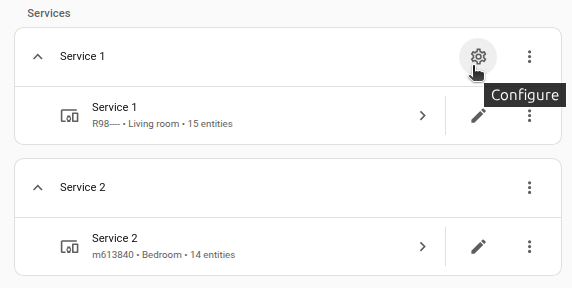
On the card, select the cogwheel
. - If the card does not have a cogwheel, the integration does not support options for this service.
-
Edit the options, then select Submit to save the changes.
The options are the same as the ones you set during setup, except Country, which you can’t change. To use a different country, add another Workday entry. After you change the options, the integration reloads.
Entities
The Workday integration provides the following entities.
Binary sensor
The binary sensor is On when the checked day is a workday, and Off when it’s not. The checked day is today, shifted by the number of days you set in Offset. The sensor updates at midnight.
The binary sensor has the following attributes:
-
workdays: The weekdays you set in Days to include. -
excludes: The days you set in Days to exclude. -
days_offset: The number of days you set in Offset.
Calendar
The calendar shows each workday of this year and next year as an all-day event. Like the binary sensor, it takes Offset into account: with an Offset of 1, an event on a day means that the next day is a workday.
List of actions
The Workday integrationIntegrations connect and integrate Home Assistant with your devices, services, and more. [Learn more] provides the following actions. Each link below opens a dedicated page with examples, parameters, and a step-by-step UI walkthrough.
-
Check date (
workday.check_date) Checks whether a given date is a workday.
For an overview of every action across all integrations, see the actions reference.
Workday automation examples
Automation: turn on the heater on workdays
This automation turns on the heater at 08:00, but only on workdays.
- Trigger: Time: 08:00
-
Condition: State
- Entity: Workday sensor
- State: On
-
Action: Turn on switch
- Target: Heater
YAML example for turning on the heater on workdays
In this example, the binary sensor is binary_sensor.workday_sensor_us. The entity ID of your sensor depends on the name of your Workday entry.
alias: "Turn on heater on workdays"
triggers:
  - trigger: time
    at: "08:00:00"
conditions:
  - condition: state
    entity_id: binary_sensor.workday_sensor_us
    state: "on"
actions:
  - action: switch.turn_on
    target:
      entity_id: switch.heater
Data fetching and limitations
Data is loaded completely offline from the holidays library and there is no data fetching.
Newly created holidays or other configuration options are completely based on the releases of the holidays library.
Troubleshooting
The integration completely relies on the information provided by the holidays library.
Check the holidays repository if you are missing a certain holiday. Some holidays in your country may not be actual official holidays and are therefore set in a special category that needs to be selected. Missing holidays or incorrect days need to be raised directly in the holidays repository.
Removing the integration
To remove an integration instance from Home Assistant
- Go to Settings > Devices & services and select the integration card.
- From the list of devices, select the integration instance you want to remove.
- Next to the entry, select the three dots
menu. Then, select Delete.