EnergyZero
The EnergyZero integrationIntegrations connect and integrate Home Assistant with your devices, services, and more. [Learn more] integrates the EnergyZero API platform with Home Assistant.
The integration makes it possible to retrieve the dynamic energy/gas prices from EnergyZero to gain insight into the price trend of the day and to adjust your consumption accordingly.
Partners who are a reseller from EnergyZero:
Configuration
To add the EnergyZero service to your Home Assistant instance, use this My button:

If the above My button doesn’t work, you can also perform the following steps manually:
-
Browse to your Home Assistant instance.
-
In the bottom right corner, select the
Add Integration button. -
From the list, select EnergyZero.
-
Follow the instructions on screen to complete the setup.
Options
To define options for EnergyZero, follow these steps:
-
In Home Assistant, go to Settings > Devices & services.
-
If multiple instances of EnergyZero are configured, choose the instance you want to configure.
-
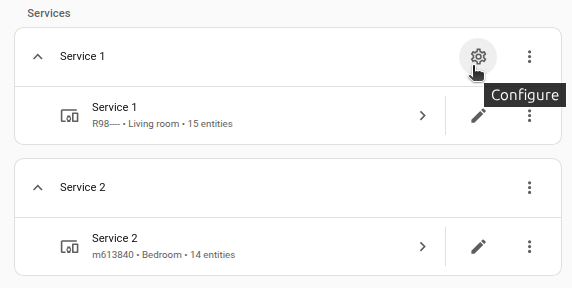
On the card, select the cogwheel
. - If the card does not have a cogwheel, the integration does not support options for this service.
-
Edit the options, then select Submit to save the changes.
The selected interval applies to today’s and tomorrow’s market and all-in electricity prices and their sensors. Changing this option automatically reloads the integration. Gas prices and the polling interval are unaffected.
The Get energy prices action has its own Price type and Interval options. It defaults to hourly market prices, regardless of the interval selected here.
Use cases
Use the energy dashboard to track costs with these sensors:
- Current all-in price: Electricity costs based on EnergyZero’s all-in prices
- Current market price: Only the market component of your electricity costs
- Current hour: Gas costs based on the gas market price
To show prices in a dashboard chart, use one of the actions with a template sensor.
Data updates
The integration will poll the EnergyZero API every 10 minutes to update the data in Home Assistant.
Known limitations
Market prices include VAT but exclude energy tax and purchase costs. Gas sensors provide market prices only.
The all-in electricity sensors use EnergyZero’s rates. If your contract uses different rates, you can calculate your own price with a template sensor. There is no option to configure contract rates in the integration.
Sensors
The EnergyZero integration creates several sensor entities for both gas and electricity prices.
Electricity market price
Every day around 14:00 UTC time, the new electricity prices are published for the following day.
The market electricity sensors provide:
- Current market price and Next market price
- Average market price for the day
- Minimum market price for the day
- Maximum market price for the day
- Highest market price time
- Lowest market price time
- Market percentage of maximum
- Market periods priced equal or lower
The Current market price sensor shows the price for the current electricity price period. The Next market price sensor shows the price one hour or 15 minutes ahead, depending on the selected Electricity price interval.
The Market periods priced equal or lower sensor counts today’s price periods priced at or below the current market price. It reports a count without units.
Existing market sensors keep their entity IDs, so your automations and templates continue to work with the renamed sensors.
All-in electricity price
The integration also provides five sensors for the all-in electricity prices from EnergyZero, including VAT:
- Current all-in price
- Next all-in price
- Average all-in price for the day
- Minimum all-in price for the day
- Maximum all-in price for the day
The current and next prices follow the same interval as the market sensors. Both sets of sensors appear on the Electricity price device.
Gas market price
For the dynamic gas prices, only entities are created that display the
current and next hour price because the price is always fixed for
24 hours; new prices are published every morning at 05:00 UTC time.
List of actions
The EnergyZero integrationIntegrations connect and integrate Home Assistant with your devices, services, and more. [Learn more] provides the following actions. Each link below opens a dedicated page with examples, parameters, and a step-by-step UI walkthrough.
-
Get energy prices (
energyzero.get_energy_prices) Requests energy prices from EnergyZero. -
Get gas prices (
energyzero.get_gas_prices) Requests gas prices from EnergyZero.
For an overview of every action across all integrations, see the actions reference.
Examples
Automation: Run an action when the electricity price is low
This example runs an action when the current electricity price drops below €0.10/kWh.
alias: "EnergyZero low electricity price"
triggers:
  - trigger: numeric_state
    entity_id: sensor.energyzero_today_energy_current_hour_price
    below: 0.10
actions:
  - action: notify.send_message
    target:
      entity_id: notify.my_device
    data:
      message: "The current electricity price is below €0.10/kWh."
Automation: Run an action at the lowest price time
This example runs an action when the lowest electricity price time for today is reached.
alias: "EnergyZero lowest electricity price time"
triggers:
  - trigger: time
    at: sensor.energyzero_today_energy_lowest_price_time
actions:
  - action: notify.send_message
    target:
      entity_id: notify.my_device
    data:
      message: "The lowest electricity price time for today has started."
Templates
You can optionally create template sensors to display the prices in a chart or to calculate an electricity price using your own contract rates.
Prices sensor with response data
To use the response data from the actions, you can create a template sensor that updates every hour.
The energyzero.get_energy_prices action returns one entry per hourly electricity price period. The energyzero.get_gas_prices action returns one entry for each 24-hour gas price period.
Each price entry contains price, timestamp, start, and end. start is inclusive and end is exclusive. For backwards compatibility, timestamp is equal to start.
template:
  - trigger:
      - trigger: time_pattern
        hours: "*"
    action:
      - action: energyzero.get_energy_prices
        response_variable: prices
        data:
          config_entry: 1b4a46c6cba0677bbfb5a8c53e8618b0
          incl_vat: true
    sensor:
      - name: Energy prices
        device_class: timestamp
        state: "{{ now() }}"
        attributes:
          prices: '{{ prices }}'
All-in price sensor
For EnergyZero’s all-in price, use Current all-in price directly. If your contract uses different rates, this optional template adds your energy tax and purchase costs to Current market price.
Before using the template:
- Replace both
PUT_HERE_THE_PRICEvalues with your rates per kWh, including VAT. - Use your Current market price entity ID as the base to avoid adding costs twice.
- Choose a
unique_idthat is not already used by another template sensor.
template:
  - sensor:
      - name: EnergyZero all-in current price
        unique_id: allin_current_price
        icon: mdi:cash
        unit_of_measurement: "€/kWh"
        state_class: measurement
        state: >
          {% set energy_tax = PUT_HERE_THE_PRICE %}
          {% set purch_costs = PUT_HERE_THE_PRICE %}
          {% set current_price = states('sensor.energyzero_today_energy_current_hour_price') | float(0) %}
          {{ (current_price + energy_tax + purch_costs) | round(2) }}
Removing the integration
This integration follows standard integration removal steps. If you also use the template sensors, you need to remove them manually.
To remove an integration instance from Home Assistant
- Go to Settings > Devices & services and select the integration card.
- From the list of devices, select the integration instance you want to remove.
- Next to the entry, select the three dots
menu. Then, select Delete.