

Light
The Light integrationIntegrations connect and integrate Home Assistant with your devices, services, and more. [Learn more] allows you to track and control various light bulbs. Read the integration documentation for your particular light hardware to learn how to enable it.
Building block integration
This light is a building block integration that cannot be added to your Home Assistant directly but is used and provided by other integrations.
A building block integration differs from the typical integration that connects to a device or service. Instead, other integrations that do integrate a device or service into Home Assistant use this light building block to provide entities, services, and other functionality that you can use in your automations or dashboards.
If one of your integrations features this building block, this page documents the functionality the light building block offers.
State and attributes of a light entity
Light entitiesAn entity represents a sensor, actor, or function in Home Assistant. Entities are used to monitor physical properties or to control other entities. An entity is usually part of a device or a service. [Learn more] can have the following statesThe state holds the information of interest of an entity, for example, if a light is on or off. Each entity has exactly one state and the state only holds one value at a time. However, entities can store attributes related to that state such as brightness, color, or a unit of measurement. [Learn more]: on or off. The list of available attributes depends on the deviceA device is a model representing a physical or logical unit that contains entities.. Refer to the integration documentation of your light.
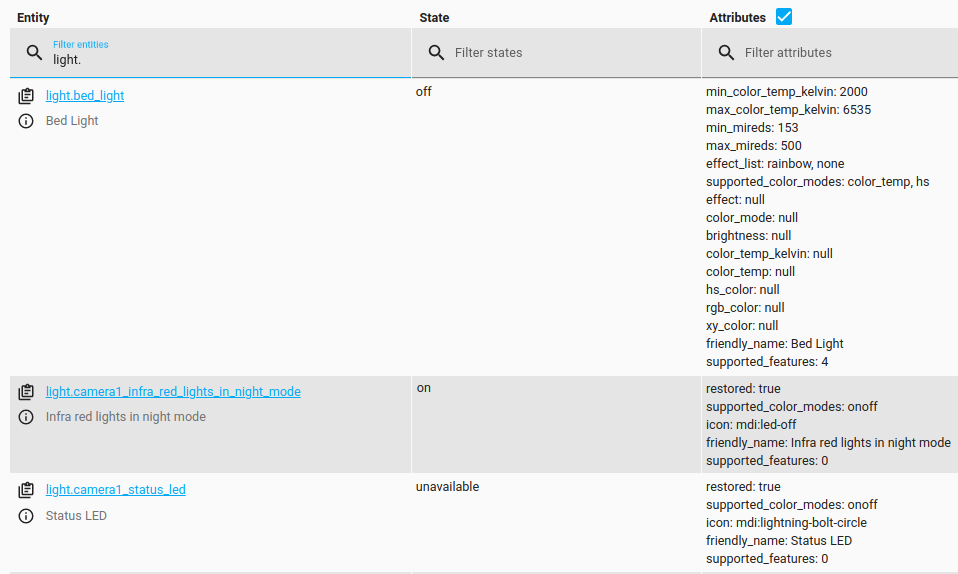 A light with the state
 on and its attributes.
Default turn-on values
To set the default color, brightness and transition values when the light is turned on, create a custom light_profiles.csv, normally located in the default configuration folder where you find configuration.yamlThe configuration.yaml file is the main configuration file for Home Assistant. It lists the integrations to be loaded and their specific configurations. In some cases, the configuration needs to be edited manually directly in the configuration.yaml file. Most integrations can be configured in the UI. [Learn more].
The light_profiles.csv has to have a header. The format of the header is:
id,x,y,brightness,transition
-
id: The name of the profile, used to reference it in action calls. -
x: The X coordinate of the CIE 1931 color space (xy color). It is a float typically between 0 and 1. -
y: The Y coordinate of the CIE 1931 color space. It is a float typically between 0 and 1. -
brightness: The brightness level to apply. It is a byte value between 0 and 255, not a percentage. -
transition: An optional positive integer specifying the transition time, in seconds, for the light to fade to a new state. This column can be omitted from the file.
The .default suffix should be added to the entity identifier of each light to define a default value. For example, for light.ceiling_2 the profile field is light.ceiling_2.default. To define a default for all lights, the identifier group.all_lights.default can be used. Individual settings always supersede the all_lights default setting.
If a light entity is in the on state, the default profile brightness will only be applied if it is called in the action data attribute profile, like any other named profile. The transition attribute will be applied for all light.turn_on, light.toggle, and light.turn_off actions, unless specified otherwise in the action data.
Example of a light_profiles.csv file
id,x,y,brightness,transition
relax,0.5119,0.4147,144,2
concentrate,0.2921,0.2606,240,1
reading,0.4448,0.4066,200
light.living_room_lamp.default,0.4576,0.4101,180
light.bedroom_lamp.default,0.5014,0.4152,60,3
group.all_lights.default,0.4448,0.4066,254,2
List of triggers
The Light integrationIntegrations connect and integrate Home Assistant with your devices, services, and more. [Learn more] provides the following triggers. Each link below opens a dedicated page with examples, fields, and a step-by-step UI walkthrough.
-
Light brightness changed (
light.brightness_changed) Triggers when the brightness of one or more lights changes. -
Light brightness crossed threshold (
light.brightness_crossed_threshold) Triggers when the brightness of one or more lights crosses a threshold. -
Light turned off (
light.turned_off) Triggers when one or more lights turn off. -
Light turned on (
light.turned_on) Triggers when one or more lights turn on.
For an overview of every trigger across all integrations, see the triggers reference.
List of conditions
The Light integrationIntegrations connect and integrate Home Assistant with your devices, services, and more. [Learn more] provides the following conditions. Each link below opens a dedicated page with examples, fields, and a step-by-step UI walkthrough.
-
Light brightness (
light.is_brightness) Tests the brightness of one or more lights. -
Light is off (
light.is_off) Tests if one or more lights are off. -
Light is on (
light.is_on) Tests if one or more lights are on.
For an overview of every condition across all integrations, see the conditions reference.
List of actions
The Light integrationIntegrations connect and integrate Home Assistant with your devices, services, and more. [Learn more] provides the following actions. Each link below opens a dedicated page with examples, parameters, and a step-by-step UI walkthrough.
-
Toggle light (
light.toggle) Flip a light between on and off. If it’s off, it turns on. If it’s on, it turns off. -
Turn off light (
light.turn_off) Turn a light off. Optionally fade it out with a transition, or have it flash briefly before it goes dark. -
Turn on light (
light.turn_on) Turn a light on. Optionally set brightness, color, color temperature, an effect, or a transition.
For an overview of every action across all integrations, see the actions reference.